How to Choose an External SSD for Your Laptop and Backups: Buying Guide
Published October 20, 2026
In this article
Pick an external SSD by the interface your computer can actually use, the capacity you really need, and how you will carry it. Advertised read speeds look impressive, but a 2,000MB/s drive is wasted on a port that only delivers 10Gbps. Match the drive to the port and the work, not to the biggest number on the box.
What actually matters
Interface and the port you actually have
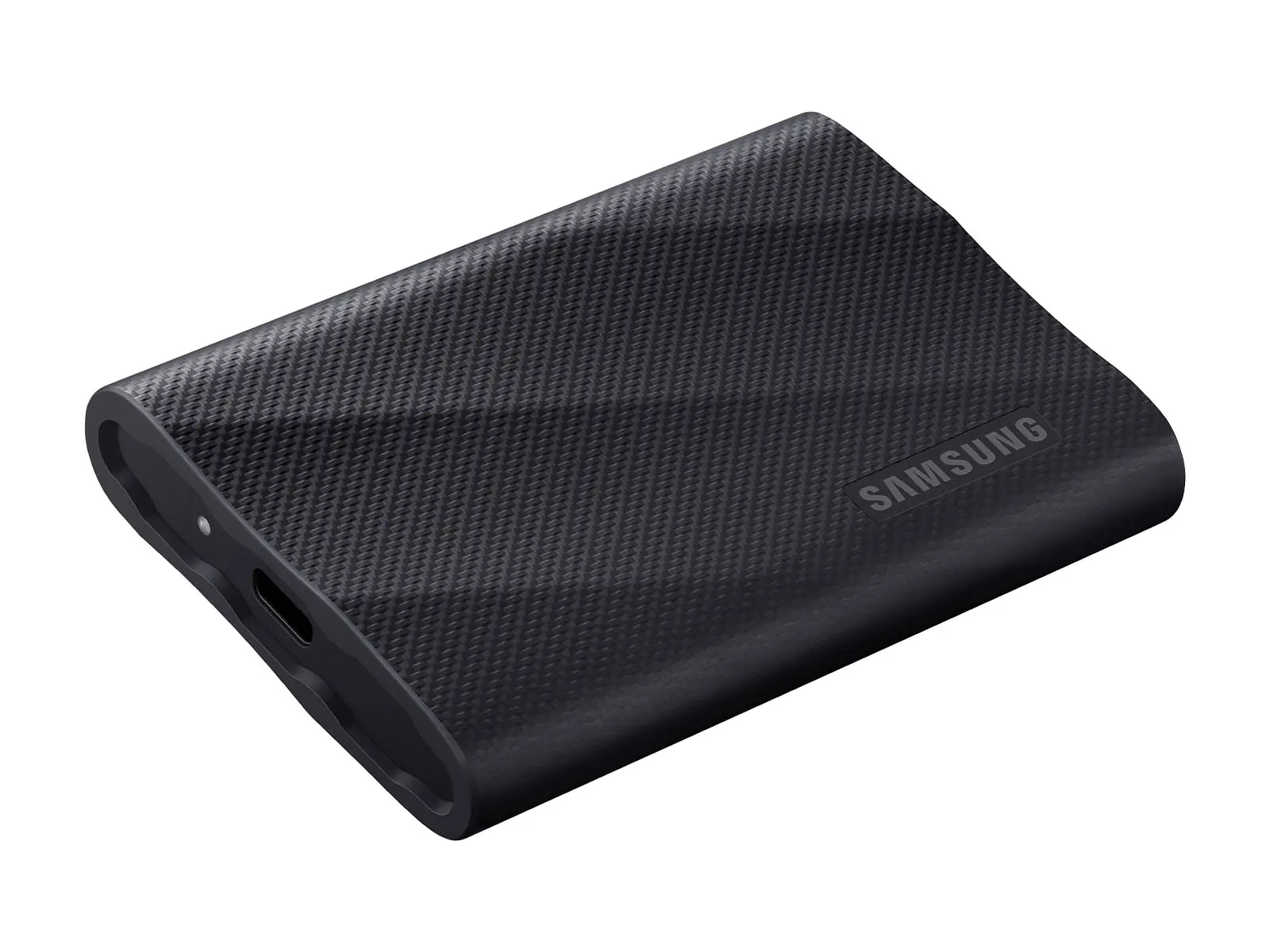
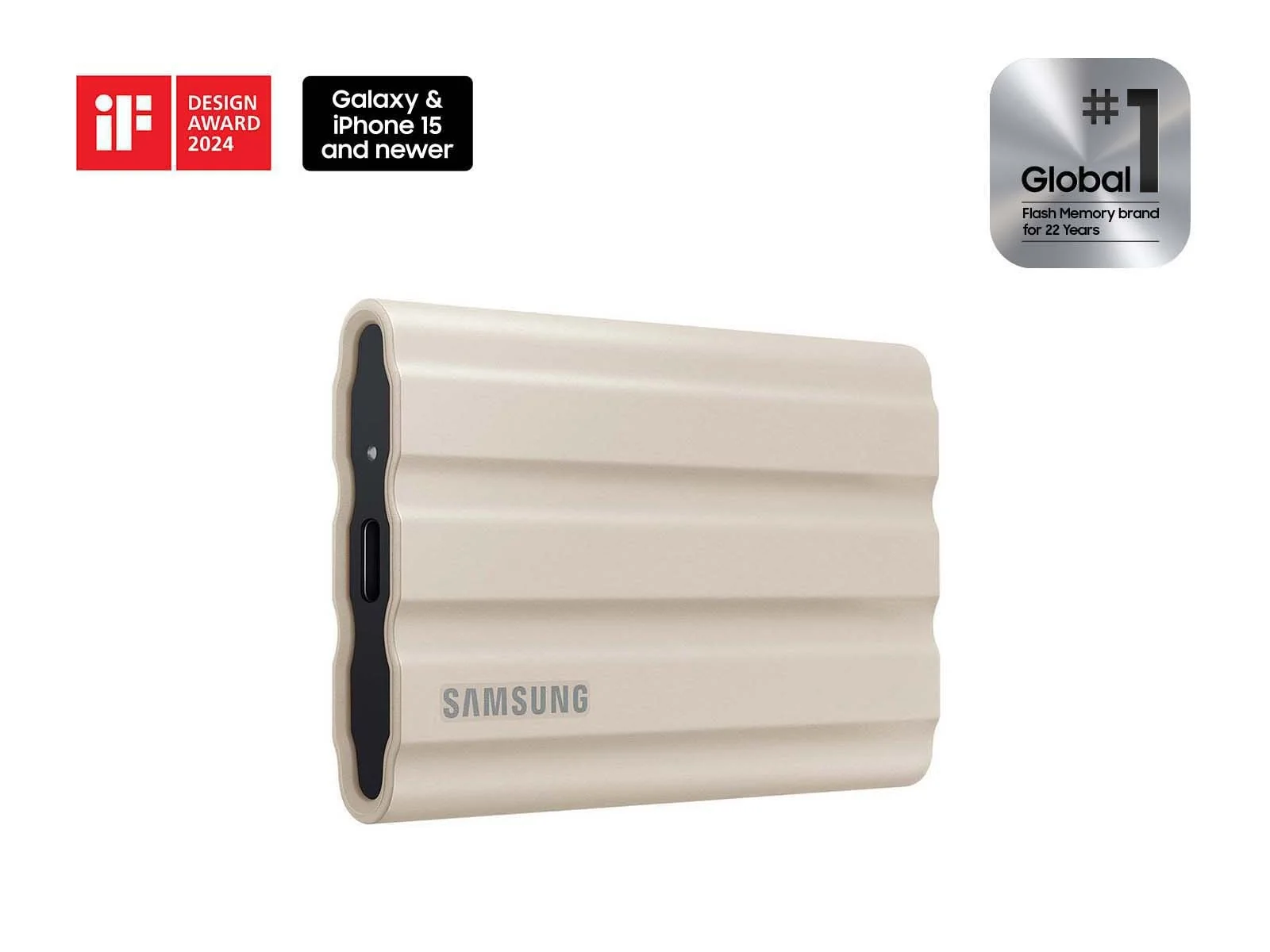
The single biggest factor is the USB generation on both the drive and your computer. USB 3.2 Gen 2 runs at 10Gbps and suits drives around 1,000MB/s. USB 3.2 Gen 2x2 runs at 20Gbps and is the only way to use a drive rated near 2,000MB/s. If your laptop or desktop has only Gen 2 ports, a Gen 2x2 drive will still work, just at the slower speed. Check your ports before you buy, not after. The Samsung Portable SSD T9 1TB (MU-PG1T0B) uses USB 3.2 Gen 2x2 and reaches 2,000MB/s read and write, so it only makes sense on a 20Gbps port. On a plain 10Gbps port the Samsung T7 Shield 1TB is already near the ceiling at up to 1,050MB/s read and 1,000MB/s write, and it costs less because it asks less of the port.
Rule of thumb: the drive can never run faster than the slowest link. Check the port first, then pick the drive that fits it.
Capacity and the memory inside
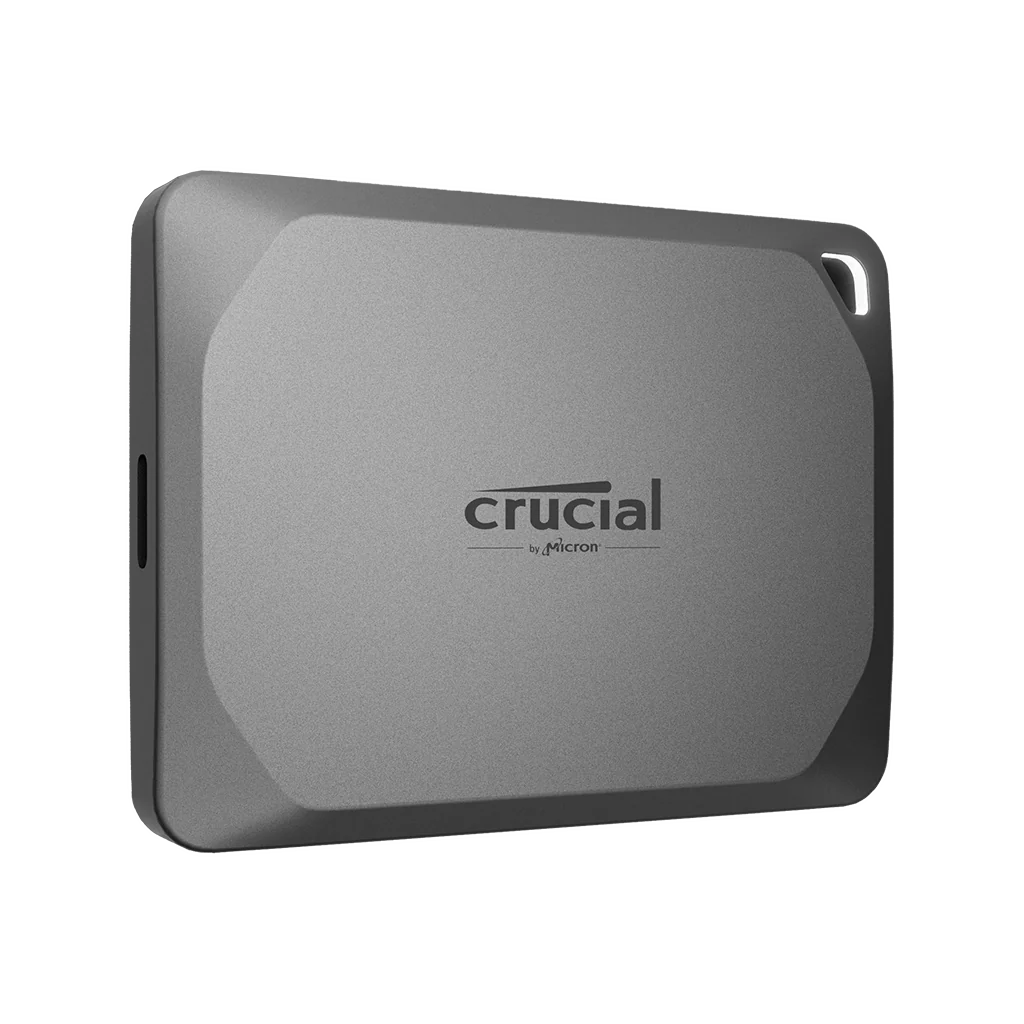
Capacity is the second decision, and the third is what sits behind the label. A drive built on TLC NAND with a DRAM buffer tends to hold its speed during long copies better than a DRAM-less budget design. The Samsung T7 Shield 1TB is an M.2 2280 PCIe NVMe drive with a DRAM-less Samsung Pablo controller and 128-layer TLC NAND. The Crucial X9 Pro 1TB pairs TLC NAND with a PCIe 3.0 x2 internal bus. These details explain why two drives with similar headline numbers can feel different on a big folder.
Sustained speed and heat
Advertised speeds are usually peak numbers measured on a small file. Copying a 100GB batch is a different test. A drive with weak thermal control can slow down halfway through. Samsung’s Dynamic Thermal Guard is designed to keep the casing from overheating, and the T7 Shield’s casing is kept under about 57C under load. For photo and video work, sustained speed matters more than peak speed.
Rule of thumb: for large copies, sustained write speed and heat control beat a big peak number.
Types compared
| Format | Best when | Main drawback |
|---|---|---|
| Everyday slim SSD | Daily carry, documents, light photo work | No drop or water protection |
| Rugged SSD | Travel, field work, outdoor use | Slightly larger and heavier |
| Gen 2x2 performance SSD | Large video and photo batches on a 20Gbps port | Wasted on a 10Gbps port |
| Budget 10Gbps SSD | General backup and file transfer | Slower on big jobs |
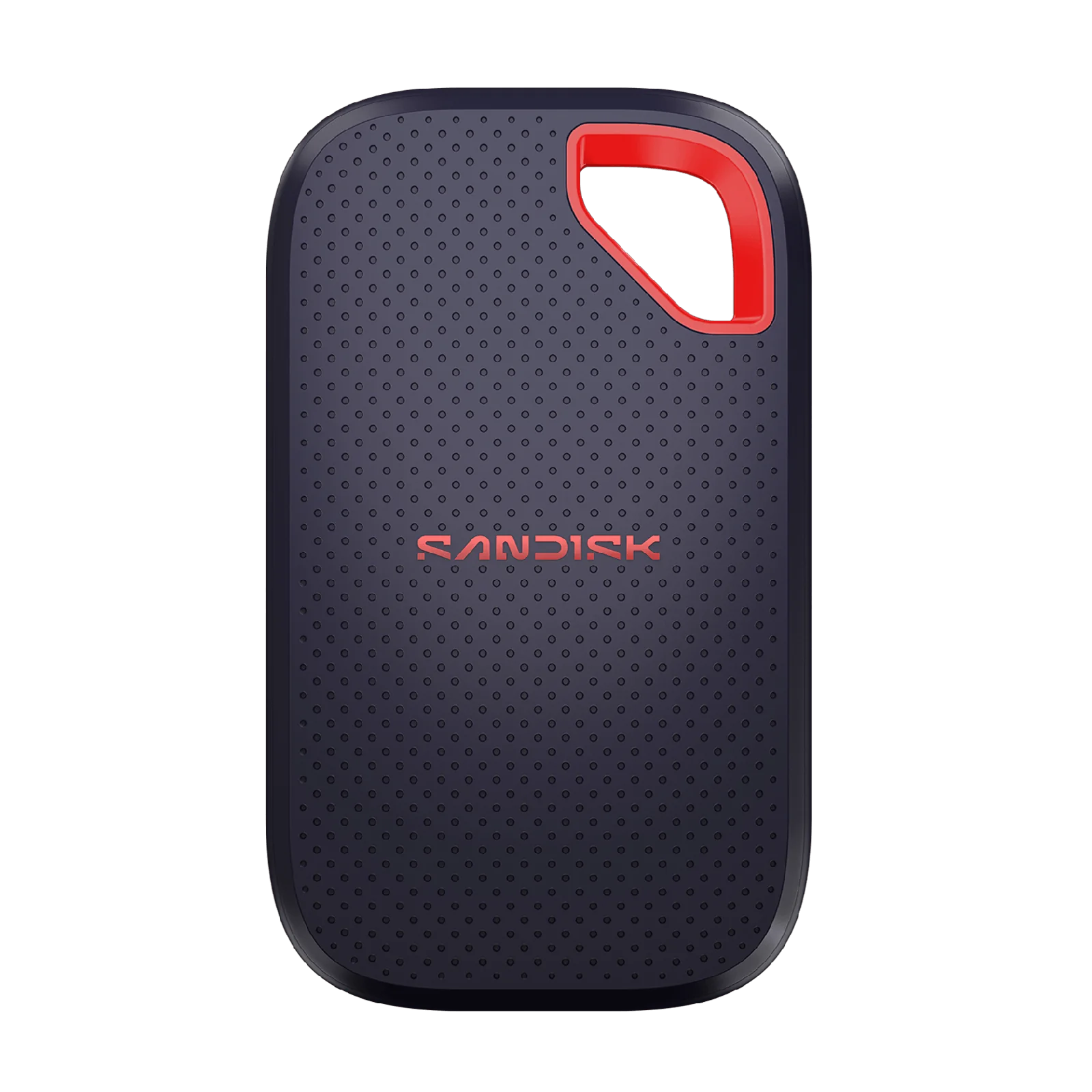
Rugged models make sense when the drive leaves your desk regularly. The Samsung T7 Shield 1TB carries IP65 dust and water resistance, drop resistance up to 3 meters, and 256-bit AES hardware encryption with password protection. The SanDisk Extreme Portable SSD (V3) 1TB also carries IP65 and up to 3-meter drop protection, plus 256-bit AES hardware encryption through the SanDisk app. The Crucial X9 Pro 1TB is the lighter-duty option here, with IP55 dust and water resistance and drop protection to 7.5 ft (2 m). Pick rugged when you actually travel; pick slim when the drive lives on a desk.
Features worth paying for
Hardware encryption is worth it when the drive might be lost or stolen. A 256-bit AES self-encrypting drive keeps data locked without taxing your computer’s processor, and both the T7 Shield and the SanDisk Extreme V3 include it. A durable metal or rubberized body pays off if you drop things. Thermal management pays off in long sessions. A USB-C connector is now the baseline; make sure the included cable matches your port.
Marketing noise
Peak read speed is the loudest number and the least useful. A drive advertised at 2,000MB/s may still be limited by your port, by the file sizes you copy, and by how long it can hold that speed. Ignore speed claims that do not also state the interface, and do not compare a 20Gbps drive against a 10Gbps drive as if they run on the same machine. Bundled software, colored cases, and “gaming” branding rarely change real performance. Do not pay extra for a feature you cannot name a weekly use for.
Who should buy what
Students and office users: a simple 1TB drive for documents, projects and backups. A 10Gbps model like the Crucial X9 Pro 1TB is enough and keeps weight and cost down.
Photographers and video editors: prioritize sustained write speed, capacity and cooling. The Samsung Portable SSD T9 1TB (MU-PG1T0B) at 2,000MB/s suits big batches on a 20Gbps port, while the SanDisk Extreme Portable SSD (V3) 1TB offers 20Gbps with rugged protection for location work.
Travelers and field workers: prioritize ruggedness and encryption. The Samsung T7 Shield 1TB covers IP65, 3-meter drops and hardware encryption.
Anyone on an older 10Gbps-only machine: a Gen 2x2 drive will not reach its advertised speed. Buy a strong 10Gbps model and spend the savings on more capacity.
Common mistakes
Buying by peak read speed alone. Check the interface and the write speed.
Ignoring the port on your computer. A 20Gbps drive on a 10Gbps port runs at 10Gbps.
Buying too small to save money. Running out of space is worse than paying for capacity you barely use.
Assuming all SSDs are the same speed under load. Heat and DRAM design change sustained performance.
Skipping encryption on a portable drive. A lost drive is a data leak, not just a lost gadget.
Choosing rugged when you need performance, or the reverse. Match the drive to where it will actually live.
Setup and maintenance tips
- Format the drive for your operating system before heavy use, and keep a backup in a second location.
- Use the cable that came with the drive, or a certified cable rated for the same speed, because a weak cable can cap performance.
- Keep the connector clean and dry, and let the drive cool after a long copy.
- Eject safely before unplugging so no write is interrupted.
- Register the drive if the maker offers a warranty extension, and store the serial number somewhere safe.
- Replace the drive if it starts dropping connections, runs unusually hot, or shows errors.
- Samsung Portable SSD T9 1TB (MU-PG1T0B) – suits buyers with a 20Gbps port who move large video or photo batches and want 2,000MB/s read and write with Dynamic Thermal Guard.
- Samsung T7 Shield 1TB – fits travelers and field workers who want IP65 dust and water resistance, 3-meter drop protection and 256-bit AES hardware encryption.
- SanDisk Extreme Portable SSD (V3) 1TB – matches creators who want 20Gbps speed together with IP65 and 3-meter drop protection for location work.
- Crucial X9 Pro 1TB – serves students and office users who want a light 1TB drive at up to 1,050MB/s with IP55 dust and water resistance.