How to Choose a Webcam in 2026
Published October 20, 2026
In this article
A webcam should look natural in the lighting and software you use. It does not need the largest resolution number or the most aggressive AI processing. Start with your purpose—meetings, teaching, streaming, or recording—then compare frame rate, focus, USB connection, lighting, and microphone needs [1][2][3].
Is a webcam worth it in 2026?
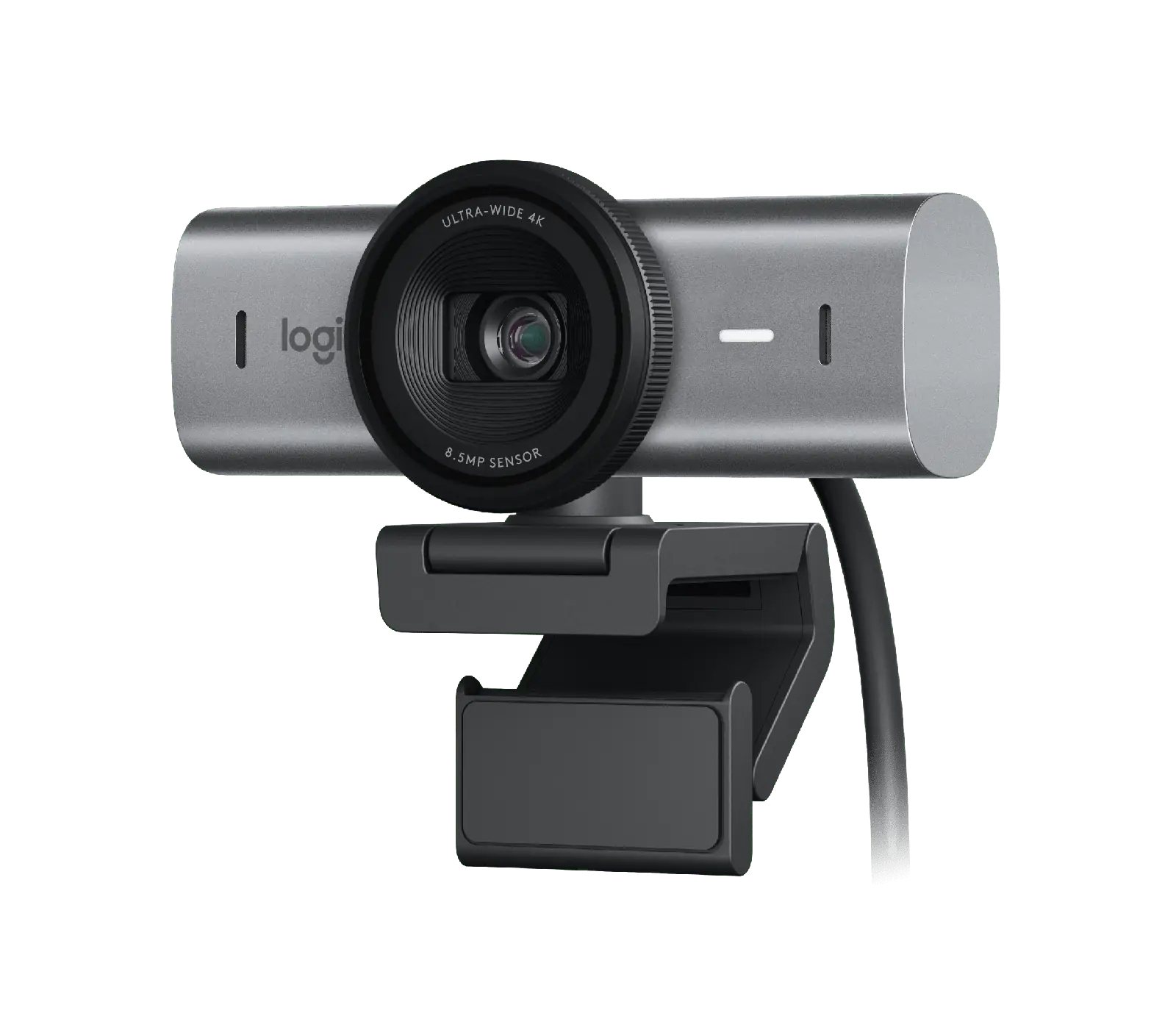
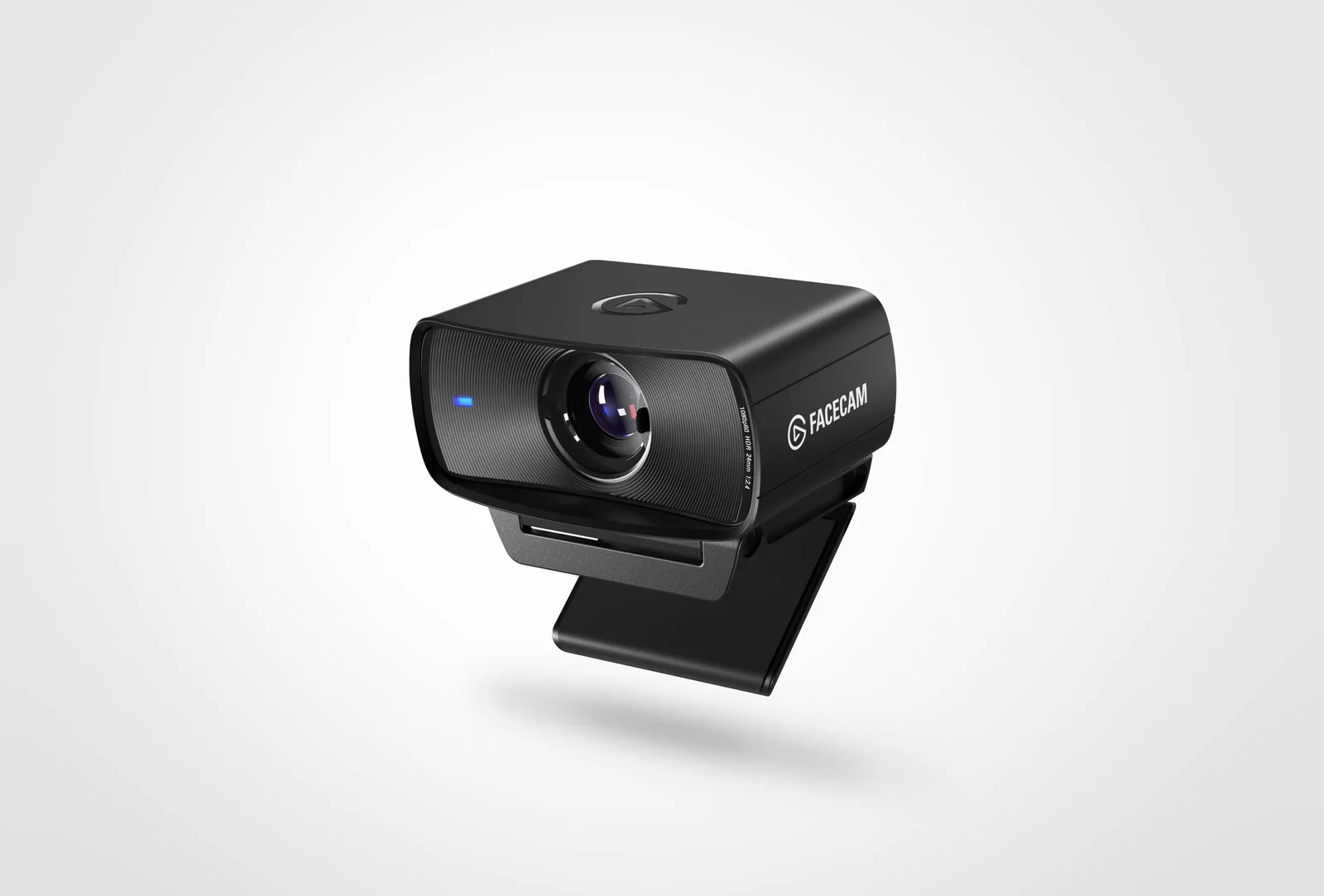
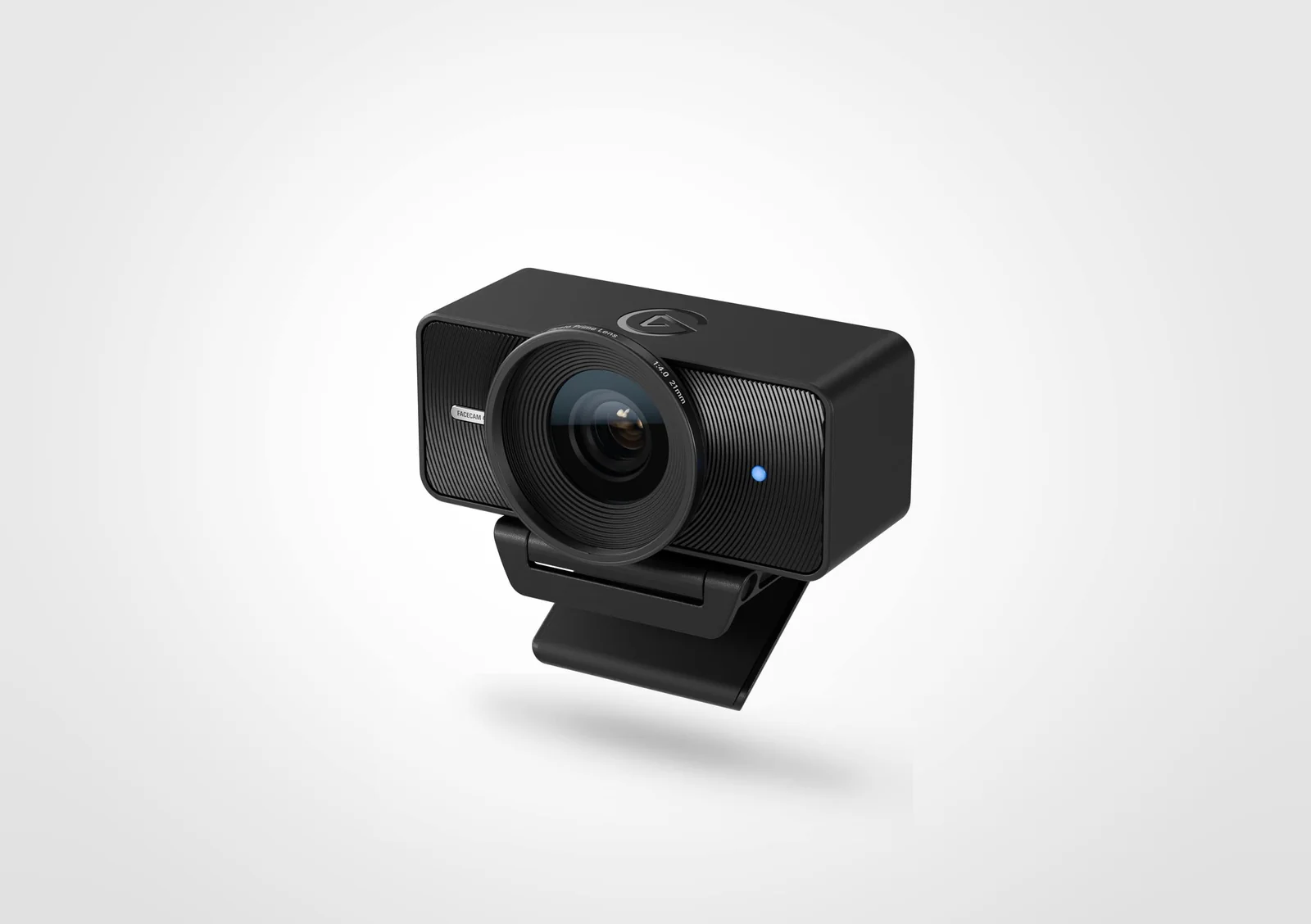
Yes for a fixed home workstation. An external camera can sit at a better height than a laptop camera, offers flexible framing, and may provide cleaner video for presentations or recorded lessons. For streamers, manual exposure controls and consistent image output are particularly useful. The Logitech MX Brio combines 4K capture and built-in microphones; the two Elgato models prioritize controllable picture capture [1][2][3].
Skip an upgrade if your existing image already meets your needs. A well-lit laptop camera may look better than a high-resolution webcam facing a bright window. Your meeting service may cap outgoing resolution. Microsoft says Teams video can optimize up to 1080p at 30 fps where bandwidth permits, while Zoom’s 1080p meeting support depends on account settings and other requirements [4][5]. Test the call application before paying for capture performance it never uses.
What actually matters
1. Real resolution and frame rate
1080p means a nominal 1920 × 1080 image. 4K UHD is 3840 × 2160: four times as many pixels, useful for local recording or cropping, but not a guarantee of four times the apparent detail on a call. Compression, poor lighting and platform limits can erase the advantage. A steady 1080p30 meeting often looks preferable to an unstable 4K feed [4][5].
The Logitech MX Brio supports 4K at 30 fps or 1080p at 60 fps [1]. The Elgato Facecam MK.2 is a 1080p60 camera with HDR and a fixed-focus lens [2]. The Elgato Facecam 4K supports 4K60 over an appropriate connection, with specific format restrictions [3].
At 30 fps, each frame occupies about 33 ms; at 60 fps, about 17 ms. These intervals describe frame timing, not the total delay your viewer experiences. If you move a lot while presenting or recording, 60 fps may look smoother. For a person mostly seated and speaking, stable exposure and believable color can matter more.
Check what your software receives, not simply what a product page claims. Test the actual meeting resolution. For OBS recordings, set an explicit mode supported by the camera and check the output file [6].
2. Sensor, lighting, exposure and HDR
The camera cannot create photons that never reached its sensor. Insufficient light often forces longer exposure or stronger noise reduction, making skin texture soft and movement smeared. Position a soft light in front and slightly to the side of your face, preferably near eye level, before deciding you need another camera. Avoid having a window directly behind you.
The Elgato Facecam 4K uses a Sony STARVIS 2 1/1.8-inch sensor and an f/4.0 fixed lens [3]. The Facecam MK.2 uses a Sony STARVIS 1/2.5-inch sensor with an f/2.4 lens [2]. These measurements describe different sensor and optical designs; neither specification alone proves a particular camera performs better in every dim room.
The Logitech MX Brio uses automatic exposure, white balance and face-aware image enhancement [1]. Such features may be convenient during unpredictable office calls. Creators may prefer to set white balance, exposure and shutter behavior manually to stop brightness changes whenever a white slide appears on the monitor.
HDR can help preserve detail in uneven lighting, but may limit available modes. Elgato lists HDR at 4K30 rather than 4K60 on Facecam 4K [3]. If you need HDR, confirm the exact combination of resolution and frame rate, and whether your recording or conferencing application handles the resulting video correctly.
Rule of thumb: Improve light placement and exposure first; buy higher resolution when your actual workflow benefits from extra recorded detail or cropping.
3. Autofocus versus fixed focus, and the useful distance
Autofocus is useful if you move toward and away from the desk, hold objects near the lens or change positions during presentations. The Logitech MX Brio offers autofocus and a Show Mode designed to share items on the desk [1]. Test how quickly it refocuses and whether it hunts during ordinary conversation.
Fixed focus avoids visible focus hunting but has a designed sharp-distance range. Elgato specifies 30–120 cm for the Facecam MK.2 [2]. For the Facecam 4K, its official guide lists 30–120 cm at 4K and a broader 25 cm to infinity at 1080p [3]. This is important if you sit unusually close to the monitor or demonstrate small objects at arm’s length.
Measure from the camera lens to your typical face position, not from the keyboard. A typical seated distance around 50–90 cm may suit a fixed-focus webcam, but your mounting arrangement determines the actual distance. If you lean forward to read text, test sharpness there too.
A camera that cannot focus well at your habitual distance is a poor fit even if its sensor is excellent. Do not confuse software sharpening with genuine optical focus; halos around eyelashes and hair can indicate aggressive processing rather than extra detail.
4. Field of view, mounting height and background control
Field of view determines how much of your room appears in the frame. A wider diagonal angle is useful for showing two people or moving around, but it also reveals more background clutter and may make a single face appear small. The Elgato Facecam MK.2 lists 84 degrees, while the Elgato Facecam 4K lists 90 degrees [2][3].
A narrow crop can make a meeting feel more natural, with the face and shoulders visible instead of a wide room. A 4K source offers more room to crop while retaining a 1080p output, but the ability to reframe depends on your software. Do not assume a webcam physically rotates just because a software tool advertises pan, tilt and zoom.
Mount the lens at or a little above eye level, rather than looking up from the bottom edge of a laptop. Make sure the monitor clip does not damage a thin display bezel or block ventilation. Both Elgato models support a 1/4-inch mounting thread for compatible stands [2][3]. Check stand stability if you regularly move the screen.
For families using one workstation, choose a position that can be adjusted for different heights. A good picture should not require users to hunch or repeatedly tilt the screen.
5. USB bandwidth, formats and application support
The label USB-C describes the connector shape, not the actual data speed. Some modes require USB 3.0 bandwidth. Elgato recommends a direct USB 3.0 connection for the Facecam MK.2, avoiding a questionable hub [7]. The Facecam 4K lists 4K60 in MJPG, while its uncompressed or different video formats have separate limits [3].
For creators, uncompressed YUY2/NV12 versus compressed MJPG may affect software compatibility, bandwidth, delay and image handling. Look for the combinations supported by the camera at your chosen USB speed. An included USB-C cable does not guarantee every USB-C port or older hub will support the highest mode.
OBS lets you set a webcam’s resolution, frames per second, video format and buffering in its video-capture source properties [6]. If a camera shows a black image at a manually selected mode, return to a supported combination rather than immediately assuming hardware failure.
Video conferencing services can change settings dynamically to protect call quality. Teams recommends a sufficiently reliable upload connection and adapts resolution to available capacity [4]. Zoom’s official HD guide also describes conditions under which sending 1080p is permitted, and lists about 3.8 Mbps minimum upload for Full HD [5].
Rule of thumb: Verify the resolution + frame rate + USB format together; a 4K label and a USB-C plug alone tell you too little.
6. Microphones, privacy and workflow
Some webcam designers omit microphones deliberately because they expect an external microphone or headset. Elgato’s Facecam MK.2 does not include a microphone [2]. The Logitech MX Brio includes two beamforming noise-reducing microphones [1]. If you do not own a separate mic, that distinction matters more than an extra image mode.
For calls in a quiet room, a built-in mic may be convenient. For a noisy keyboard, room echo or frequent streaming, a headset or a properly positioned separate microphone may give more controllable sound. Test it with normal typing, air-conditioning and distance from the desk.
A physical privacy shutter provides a clear way to cover a lens between meetings. The MX Brio and Facecam MK.2 both offer shutters [1][2]. Still review app camera permissions and firmware updates. The FTC advises protecting connected cameras and accounts with updated software and appropriate privacy settings [8].
If you use background removal or other AI effects, check processor and graphics requirements. Do not base the purchase on a feature that depends on software your work computer is not permitted to install.
Types compared
| Type | Best when | Main drawback |
|---|---|---|
| Basic 1080p webcam | Everyday video calls | Limited cropping freedom |
| 1080p60 creator webcam | Smooth streaming and manual controls | May require separate microphone |
| 4K30 collaboration webcam | Meetings with autofocus and reframing | Meetings may not transmit 4K |
| 4K60 creator webcam | Local video production with movement | USB, software and lighting demands |
| Autofocus webcam | Desk demos and changing distance | Can hunt for focus |
| Fixed-focus webcam | Consistent seated shooting position | Less flexible close-up framing |
Webcams for beginners, small homes, families and heavy use
Beginners and students: Our editor recommends UGREEN webcams as inexpensive, solid options worth checking for everyday video calls. Their 4K model’s official description lists 4K30, 1080p60, autofocus, dual microphones and a privacy cover [9]. It is not currently an approved product link in our catalog, so compare its exact regional model and specifications separately.
Small home offices: The Logitech MX Brio gives 4K30, 1080p60, automatic image adjustments, microphones and a shutter in one device. That suits people who alternate ordinary calls with occasional desk demonstrations [1].
Families sharing a desk: Adjustable mounting and autofocus may be more convenient than a fixed-focus camera positioned for only one person’s height. For frequent calls, consider the MX Brio and verify that every user’s preferred video service can access it.
Creators and frequent streamers: The Elgato Facecam MK.2 fits a controlled 1080p60 studio or streaming setup where a separate microphone already exists [2][7]. A fixed lens reduces autofocus hunting when the speaker remains at a consistent distance.
Heavy recording and cropping: The Elgato Facecam 4K supports up to 4K60, and its 49 mm filter thread opens options for compatible optical filters. Confirm 4K60 video-format restrictions and whether HDR at 4K30 better serves your work [3].
Features that are marketing noise
“AI-enhanced” does not automatically imply a more accurate skin tone or better exposure. Extreme digital zoom cannot recreate details that the optical system never captured. A 4K label also says nothing about whether the call service sends your video in 4K.
A high megapixel count is not automatically better in a dim bedroom. Lens aperture, sensor design, compression and the available light all affect the result. Many people will gain more from a soft lamp and better microphone placement than from changing cameras [1][4].
Setup tips
- Mount the webcam at eye level and keep the face in the central part of the frame.
- Provide soft front-side lighting; avoid an uncovered bright window directly behind you.
- Measure the lens-to-face distance, especially for fixed-focus Elgato cameras [2][3].
- Connect directly to a suitable USB 3.0 port for modes requiring that bandwidth [7].
- Open the operating system’s camera application and confirm the live image.
- Select the actual webcam and microphone separately in Zoom, Teams, or OBS [4][5][6].
- Compare 1080p30 and 1080p60 with real motion; use 4K only where software supports it.
- Set white balance and exposure, test a short recording, and close the privacy shutter afterward.
Maintenance and what wears out
Weekly or as needed: Wipe dust from the exterior and gently clean the lens with a microfiber cloth. Elgato warns against paper towels or liquid detergents on its Facecam lens [7]. A smudged front element can make even a 4K image appear foggy.
Monthly: Check the monitor clip, pivot, USB plug and cable for looseness or strain. Open a known camera app to confirm resolution, focus and audio settings still work after operating-system updates. Inspect shutter movement and avoid forcing it if the mechanism sticks.
Firmware and yearly running costs: Check manufacturer software occasionally for meaningful firmware or compatibility updates, following the exact model’s instructions. A USB webcam typically has no scheduled replacement filters or consumables. If it averaged 2 W during 250 hours of video use a year, consumption would be 0.5 kWh; that is an illustrative calculation, not measured power for any listed camera. Replacement cables or mounts are occasional, not annual requirements.
Long-term: Cable connections, clips, privacy shutters and mechanical pivots can wear. Fixed lenses need no autofocus motor, but cameras still depend on image processing and current USB and application support. There is no sound basis for promising a universal three- or five-year lifespan. Protect the lens during travel and store the cable without sharp bends.
Rule of thumb: When image quality deteriorates, clean the lens and check lighting, focus and USB mode before replacing the webcam.
Webcams versus alternatives: pros and cons
An external webcam mounts conveniently above a monitor and is easy to move between desks. A laptop camera requires no extra hardware but gives fewer placement choices. A smartphone used as a computer camera may produce excellent images but ties up the phone and requires compatible software, mounting and sometimes a cable. A dedicated interchangeable-lens camera offers greater optical control but adds capture, power and setup complexity.
Common mistakes
Buying 4K purely for calls that transmit 720p or 1080p, overlooking microphone absence, putting a bright window behind the subject, using a USB 2.0 hub for an uncompressed high-rate mode, mounting a fixed-focus camera too close, and never checking the platform’s actual captured resolution [2][3][4][5][7].
- Logitech MX Brio — 4K30/1080p60 collaboration, microphones, autofocus and privacy shutter.
- Elgato Facecam MK.2 — 1080p60 fixed-focus streaming with HDR and manual camera control.
- Elgato Facecam 4K — 4K60 recording, fixed-focus optics and 49 mm filter support.
Sources
[1] Logitech — MX Brio Official Specifications and Show Mode [2] Elgato — Facecam MK.2 Specifications [3] Elgato — Facecam 4K Specifications and Video Modes [4] Microsoft — Microsoft Teams Media Bandwidth Guidance [5] Zoom — Enabling HD Video for Meetings [6] OBS Project — Video Capture Sources and Resolution Settings [7] Elgato — Facecam MK.2 Quick Start and USB Connection [8] FTC — How to Secure Cameras and Protect Privacy [9] UGREEN — 4K Webcam Specifications and Privacy Cover