How to Choose a Smart Display in 2026
Published October 20, 2026
In this article
Choose a smart display by the job it must perform every day: bedside clock, kitchen assistant, video-calling screen, or visible family calendar. A large touchscreen does not guarantee video calls, and a voice assistant does not guarantee a useful calendar dashboard. Screen readability, supported services, privacy controls and the correct regional model matter more than impressive AI labels [1][2][3].
Is a smart display worth it in 2026?
Worth it when information needs to stay visible. A display can show timers while cooking, a shared household schedule, photo slideshows, smart-home controls or a video feed from a compatible doorbell. Physical placement helps: a glanceable clock by the bed has different requirements from a family planner in a busy hallway [3][4].
Skip it when a speaker or existing tablet already does the job. If you only want music and voice questions, a screen may add no value. A phone or tablet is more flexible for browsing and general apps, although keeping it powered and mounted may be less convenient. Some smart displays rely on cloud services that can change; check current compatibility instead of assuming every advertised feature is permanent.
What actually matters
1. Screen size, viewing distance and purpose
Readability depends on where you stand, not only pixel count. A 7-inch screen works for a clock, photo, recipe step or quick smart-home control within arm’s reach. A 15.6-inch wall calendar suits information several feet away, especially when multiple family members need to read names and appointments.
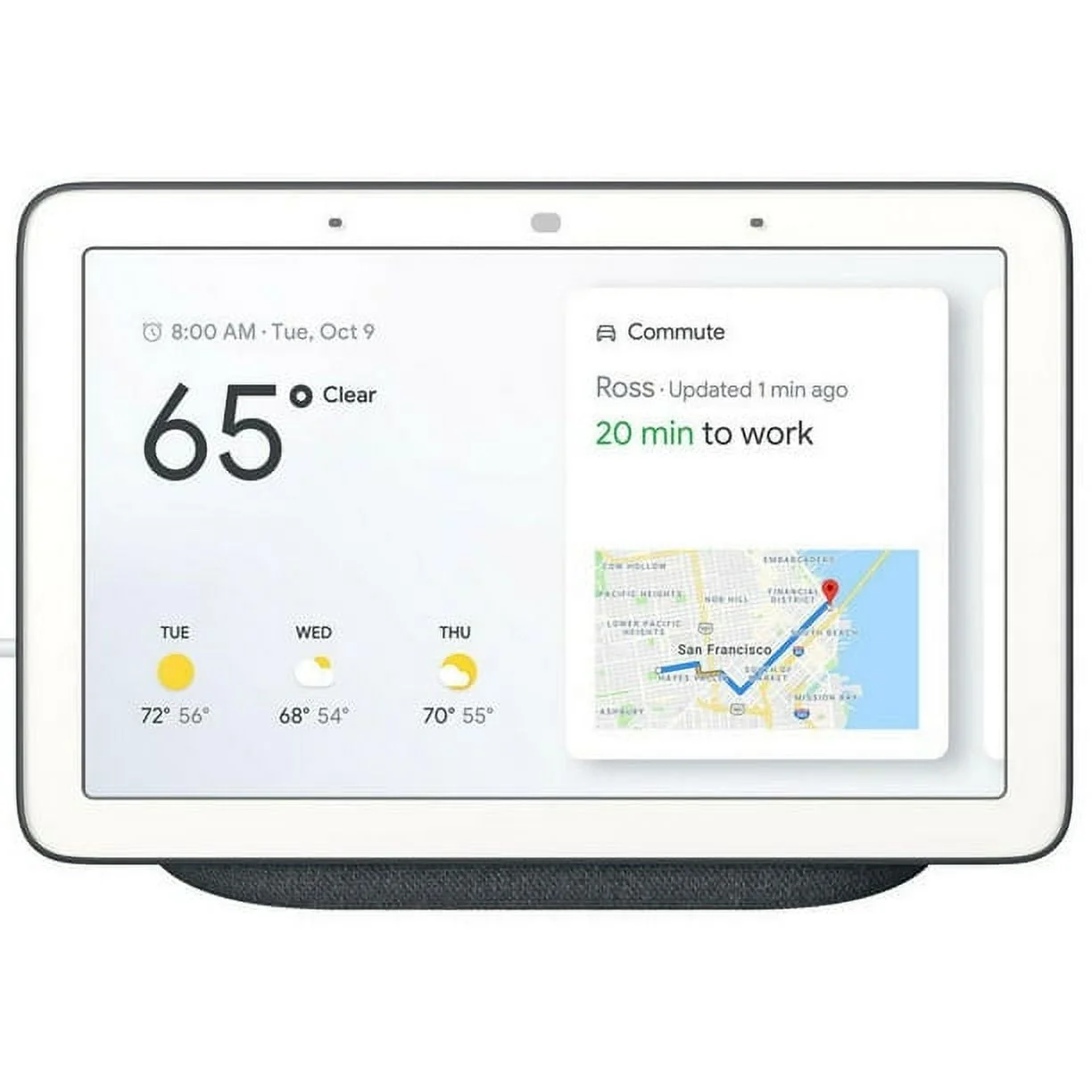
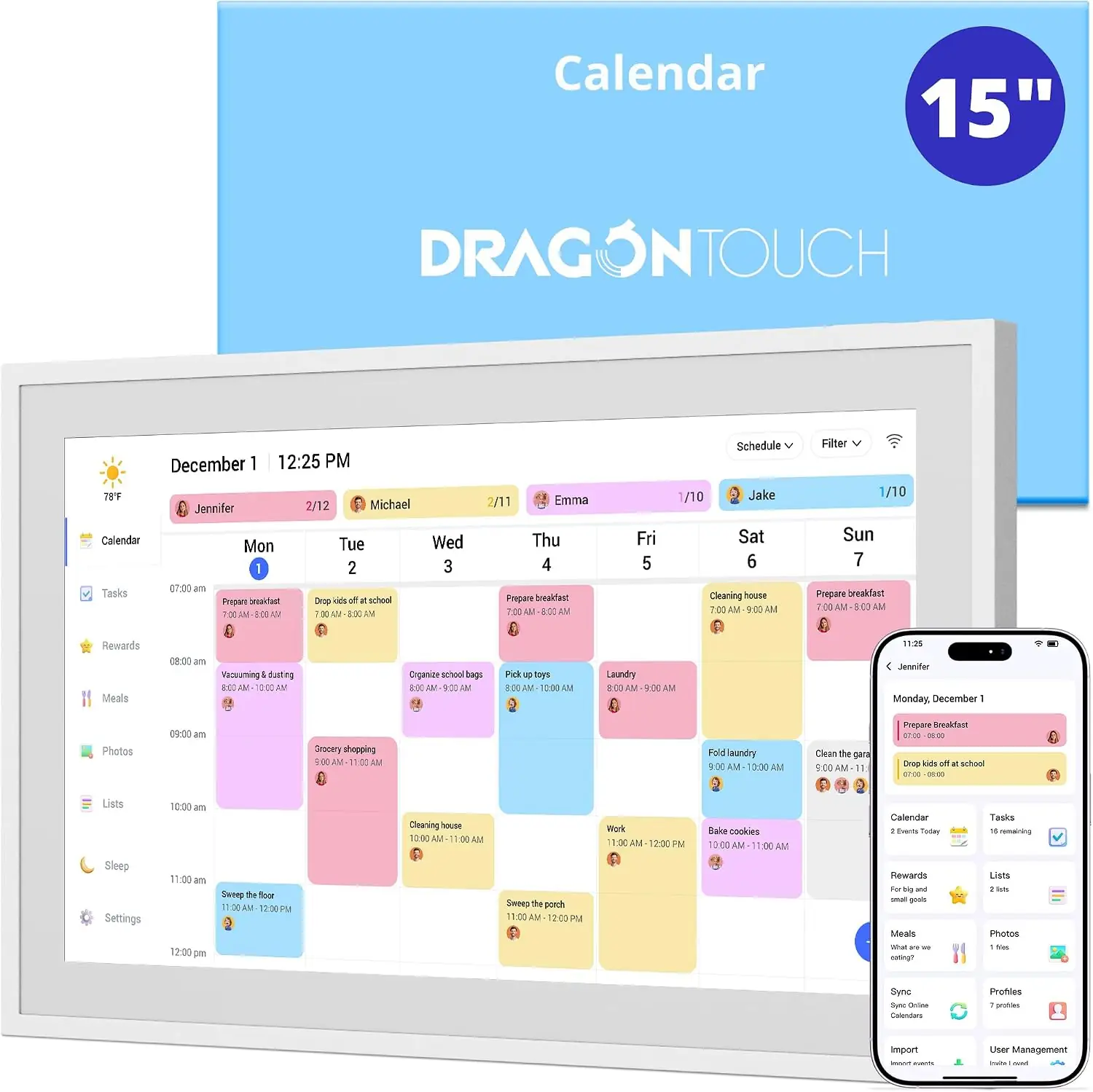
The Google Nest Hub (1st Gen) uses a 7-inch, 1024 × 600 touchscreen [1]. The Google Nest Hub Max (Japan Model) has a 10-inch, 1280 × 800 display [1]. The Dragon Touch 15.6-inch Digital Calendar offers a 1920 × 1080 touchscreen and supports landscape or portrait mounting [3].
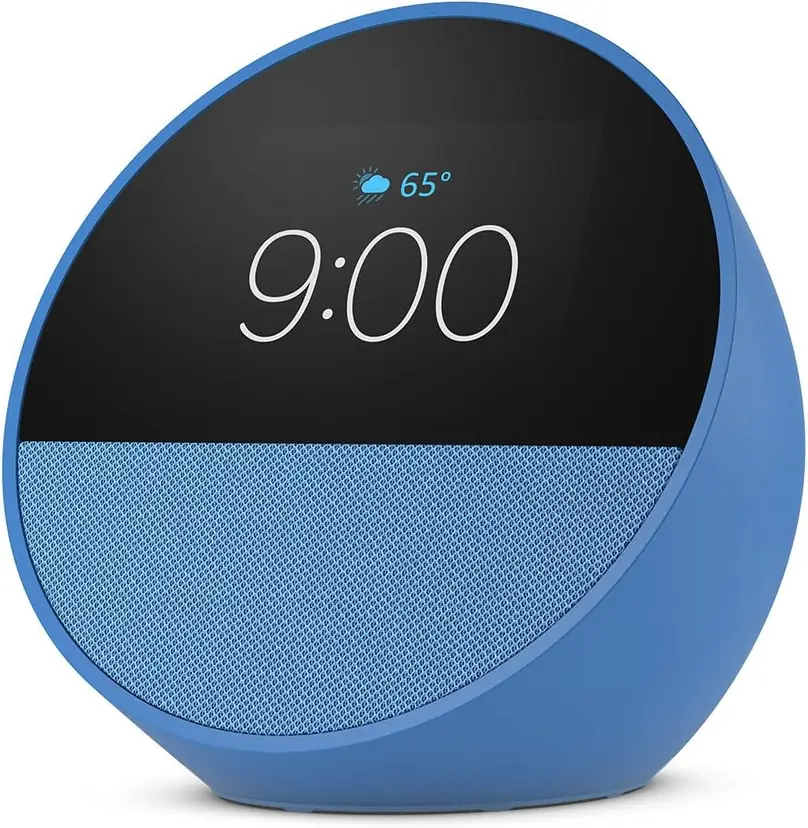
The Amazon Echo Spot is deliberately different: its 2.83-inch, 240 × 320 screen is primarily for time, music information and simple visual responses. Independent testing confirms the 2024 Echo Spot does not support video playback or streaming [5]. Do not buy it as a tiny video monitor.
Rule of thumb: Buy the smallest screen that stays readable at its real placement distance; do not treat a bedside clock as a replacement for a family dashboard.
2. Assistant ecosystem and supported everyday actions
Before considering pixels, list three tasks you will actually repeat: setting a kitchen timer, checking a calendar, viewing a camera or assigning chores. Then test the exact assistant and account integrations those actions require.
Google Nest displays work through Google Home, with Google account, Wi-Fi and supported Cast or smart-home services [1][6]. The Nest Hub (1st Gen) is a simple Google Assistant display without a built-in camera. Google’s own support distinguishes that model from the Nest Hub Max, which has video-calling and built-in camera features [4].
The Echo Spot uses Amazon Alexa for alarms, music and voice requests. Those are appropriate features for a bedside clock, but the Spot is not a full-size Echo Show.
The Dragon Touch Digital Calendar emphasizes a different workflow. Dragon Touch documents syncing Google, Apple, Outlook, Yahoo and Cozi calendars using its companion eCalendar app. Its chores, shared lists and meal planning serve family coordination rather than conversational voice control [3].
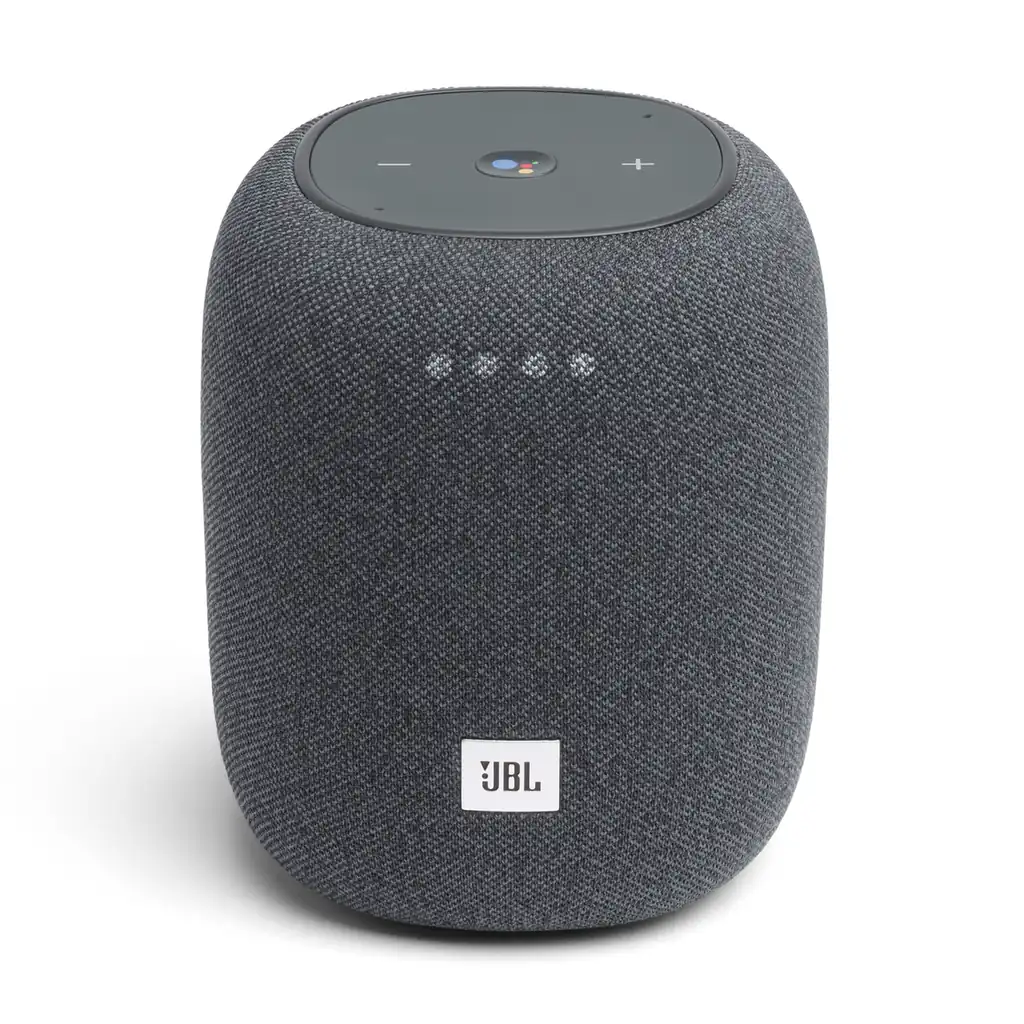
One catalog item is intentionally a contrasting alternative: the JBL Link Music is a 20 W smart speaker without a touchscreen. JBL says it needs Google Home setup before its Bluetooth mode can be used [8][9]. It may suit music and voice commands, but it cannot display appointments or video. Do not classify it as a screen-based product merely because it shares an assistant ecosystem.
3. Cameras, video calls and privacy
A camera is a purchase decision, not a universal benefit. The Nest Hub Max (Japan Model) includes a 6.5-megapixel camera, approximately 127-degree field of view and auto-framing capability [1]. Google explains that its camera can support calls, sensing and optional Nest Cam monitoring [10].
The Google Nest Hub (1st Gen) has no camera [4]. The Echo Spot (2024) also has no camera [2]. Thus two devices may both look like smart displays while having very different possibilities for calling, monitoring and household privacy.
For the Hub Max, Google’s physical rear switch disables camera and microphones. A separate on-screen option can disable only the camera. Google’s published LED behavior helps distinguish monitoring, live viewing and disabled states; a dark indicator is not always equivalent to disabling every sensing feature [10]. Check the physical switch whenever privacy is the priority.
Verify the specific calling service and contact workflow before buying an older model for regular family calls. Never promise compatibility with every conferencing application.
For security, the FTC recommends updated software, unique account passwords, two-factor authentication where available and strong home Wi-Fi protection [12]. A camera positioned in a kitchen or bedroom is a household privacy choice as well as a convenience.
4. Imported versions, Wi-Fi and power
Region matters. Our catalog’s larger Google model is specifically the Nest Hub Max Japan Model, not a U.S. retail unit. Google’s language matrix lists Japanese in Japan and English or Spanish in the United States for Nest Hub Max [13]. That describes service-region support, not a guarantee about an imported SKU’s account setup, warranty or regional restrictions.
Before buying an imported unit, verify its exact model number, power adapter, supported country during activation, voice language options and manufacturer warranty for a U.S. address. Google specifies the Hub Max power adapter for 100–240 V, 50/60 Hz, but plug type and imported accessory condition still need checking [1]. Do not assume a Japanese listing automatically gains U.S. support by changing the app language.
Most of these displays require continuous wall power. Google explicitly states its Nest display models do not contain batteries and must remain plugged in [1]. A kitchen counter installation therefore needs an outlet that does not interfere with food preparation; a wall calendar needs a safe route for its cable.
The Dragon Touch model supports dual-band 2.4/5 GHz Wi-Fi and 32 GB of local device storage in the manufacturer’s specification [3]. Network connectivity enables calendar synchronization, but local storage does not guarantee all functions continue during an internet outage. Test offline behavior if a visible schedule is mission-critical.
Rule of thumb: For imported smart-home hardware, confirm region, language, account setup and warranty before treating the published hardware specifications as sufficient.
5. Calendar ownership, subscriptions and software lifespan
Dragon Touch says core features such as its chore chart, photo display, lists and meal planning are available without a subscription, while some advanced functions such as Magic Import are paid [3]. Check the current feature list and privacy permissions before connecting personal or work calendars; paid features and platform policies can change.
For the Echo Spot, many clock, timer and music functions require an Alexa account and network setup. An assistant’s interface can change with software updates. Verify the current controls instead of relying on an older setup video [7]. Try the exact current features on a device or review updated support pages before purchasing.
6. Sound, mounting, night comfort and controls
A small display can double as a speaker, but cabinet design matters more than screen resolution for music. Google lists the Hub Max’s stereo assembly as two 18 mm tweeters plus a 75 mm woofer [1]. The JBL Link Music provides 20 W audio output with no screen [8]. The Echo Spot lists a 1.73-inch front-facing speaker in our catalog.
Wall mounting is especially relevant to a family calendar. Dragon Touch publishes separate support videos for mounting its 15.6-inch and larger units [14]. Confirm wall material, anchor choice, cable location and orientation before drilling. Do not assume a stand accessory is identical across display sizes.
Types compared
| Type | Best when | Main drawback |
|---|---|---|
| Compact clock display | Bedroom alarms, timers, music | Too small for video or calendar boards |
| 7-inch assistant display | Kitchen voice control and camera feeds | Limited visible information |
| 10-inch camera display | Video calls and shared smart-home viewing | Greater camera privacy responsibility |
| 15.6-inch family calendar | Shared schedules, chores and meal plans | Larger wall footprint and account syncing |
| Screenless smart speaker | Music and voice commands | Cannot show calendars or video |
Smart displays for beginners, small homes, families and heavy use
Beginners: The Google Nest Hub (1st Gen) provides a 7-inch screen and voice control without a camera. Verify the age, updates and currently supported Google Home features before choosing it over a newer device.
Small rooms and bedrooms: The Amazon Echo Spot suits a bedside clock, timer and music display. Its small screen and lack of camera reduce some privacy concerns, but it cannot play videos [5][7].
Families sharing schedules: The Dragon Touch 15.6-inch Digital Calendar shows a larger calendar and chores, with Google, Apple or Outlook synchronization [3]. Plan who can edit and what happens to personal event visibility.
Video calling and camera monitoring: The Google Nest Hub Max Japan Model offers camera and auto-framing capabilities, but verify imported-region compatibility and current calling support before purchasing [10][11][13].
Music-focused households: The JBL Link Music is a useful screenless alternative. If voice and sound are the main goals, the missing touchscreen may be no loss [8][9].
Features that are marketing noise
A higher display resolution will not make a tiny clock suitable for a family planning board. “AI assistant” does not guarantee compatibility with every calendar, video-call or smart-home system. A built-in camera does not automatically mean the product can join every meeting app.
Likewise, a label suggesting “no subscription” may cover only the basic features, not premium automation. Bluetooth is not proof that a speaker works before account setup, and local storage is not a promise of fully offline scheduling [3][9].
Setup tips
- Decide whether the primary task is a clock, assistant, camera or shared calendar before connecting accounts.
- Place the screen where text is legible and provide safe, continuous mains power.
- Connect to supported Wi-Fi and complete Google Home, Alexa or Dragon Touch eCalendar setup [3][6][7].
- Verify assistant language and regional services, especially for a Japan-imported Nest Hub Max [13].
- Test one real appointment, reminder, chore or camera preview rather than relying on a successful initial login.
- Set sleep or night brightness appropriate to the room.
- For a mounted calendar, follow the correct bracket instructions and secure the power cable [14].
Maintenance and what wears out
Weekly: Clean the display with a soft microfiber cloth and avoid spraying liquids into the edges or speaker grille. Dust the microphones and keep cooking grease away from a kitchen-mounted screen. Check mounting stability if the unit is touched frequently.
Monthly: Confirm the display receives updates, calendars still synchronize and camera permissions remain as intended. Review shared-home accounts, remove former household members and inspect power cables for damage. The FTC recommends securing and updating connected devices and disabling features no longer needed [12].
Electricity is the main baseline cost. A measured average draw of 5 W over 8,760 hours would use 43.8 kWh per year; this is an illustrative calculation, not a measured consumption figure for any device. Optional calendar or camera subscriptions are additional, while a missing or failed power adapter is an occasional replacement item.
Longer term: Screens may develop dim areas or touch faults, power adapters can fail and cloud integrations can change. There is no reliable universal lifetime in years for these categories. Keep purchase records, confirm regional warranty coverage and maintain a fallback way to view important appointments if the online service is unavailable.
Rule of thumb: Check the actual weekly calendar or camera workflow monthly; a powered-on display does not prove its cloud data is current.
Smart displays versus alternatives: pros and cons
A fixed smart display is visible and convenient but depends on an ecosystem and an outlet. A tablet offers more applications and portability but needs mounting, charging and an appropriate always-on display strategy. A paper wall calendar works without connectivity but cannot synchronize remote updates. A smart speaker costs no wall space for a screen yet cannot show a timetable or camera feed.
Common mistakes
Buying an Echo Spot for video playback, expecting a first-generation Nest Hub to provide two-way video with its own camera, assuming a Japan-imported Hub Max is identical to a U.S. SKU, treating JBL Link Music as a touchscreen, overlooking subscription boundaries on a family calendar, and installing a large display without a safe power cable route [3][4][5][9][13].
- Google Nest Hub (1st Gen) — 7-inch kitchen or desk assistant without a built-in camera.
- Google Nest Hub Max (Japan Model) — 10-inch video calling and smart-home display, subject to import checks.
- Amazon Echo Spot — compact bedside clock and music status display, not a video player.
- Dragon Touch 15.6-inch Digital Calendar — wall-based family schedules and chores.
- JBL Link Music — comparison-only screenless voice speaker for music-first buyers.
Sources
[1] Google — Nest and Google Home Device Specifications [2] TechRadar — Echo Spot 2017 versus 2024 Camera and Video Features [3] Dragon Touch — Digital Family Calendar Features and Compatibility [4] Google — Streaming Camera Feeds to Google Nest Displays [6] Google — Control Your Google Nest Display [8] JBL — Link Music Official Specifications [9] JBL — Google Home Setup Required for Link Music [10] Google — Nest Hub Max Camera LED States and Privacy Switch [11] Google — Google Meet on Nest Hub Max and Smart Displays [12] FTC — Securing Internet-Connected Devices at Home [13] Google — Assistant Languages by Country and Display Model [14] Dragon Touch — Digital Calendar Mounting Instructions