How to Choose a Docking Station in 2026: Buying Guide
Published October 20, 2026
In this article
Pick a docking station by the connection it makes to your laptop and the ports you use on a normal day, not by the biggest number on the box. Thunderbolt 5 docks offer the most bandwidth and carry a high-resolution display, fast storage and power over one cable. A USB-C multiport adapter is often enough for a laptop with no Thunderbolt port. Match the standard, port mix and host charging to your machine, and the dock stops being a cable mess and becomes a single plug you reach for.
What actually matters
The connection to your laptop decides everything
A dock is only as fast as the weakest link in the chain, and the weakest link is usually the laptop port. Thunderbolt 5 is the current top tier, Thunderbolt 4 is still excellent, USB4 sits in between on some machines, and plain USB-C is the baseline. If your laptop only has USB-C, a Thunderbolt 5 dock cannot add speed it does not have. If your laptop has Thunderbolt 5, a TB5 dock can make the most of it.
The practical question is not “which is newest” but “what does my laptop support, and what do I plug into the dock.” Read the laptop spec sheet before the dock box.
Rule of thumb: pick the connection standard to match your laptop’s best port, not the newest number on the box. A Thunderbolt 5 dock cannot make a USB-C-only laptop faster.
Host charging: enough to run and charge at once
The single most useful number on a dock is host charging, the power it sends back up to the laptop. A 140W host charge will run and charge most 14- to 16-inch laptops while they work. A dock with a lower host charge can still work, but a power-hungry machine under load may slowly drain instead of topping up. Check your own charger: if the laptop ships with a 140W brick, aim for a dock that can match it.
The port mix you actually use
Count the devices you plug in on a normal Tuesday: a monitor, a keyboard, a mouse, an external drive, an SD card, a wired network. That list, not a marketing total, tells you which ports matter. USB-A is still common for older peripherals and flash drives. USB-C covers newer drives and phones. HDMI or DisplayPort carries the monitor. An SD card reader saves a dongle for camera owners. Ethernet matters if the Wi-Fi where you work is unreliable.
Displays: count and bandwidth
One high-resolution display is easy; two or three at high refresh rates is where bandwidth matters. A dock with multiple downstream Thunderbolt 5 ports can split displays in ways a single-video-output adapter cannot. If you run two 4K monitors, confirm the dock lists dual-display support for your laptop’s standard.
Types compared
| Format | Best when | Main drawback |
|---|---|---|
| Thunderbolt 5 dock | Your laptop has TB5 and you want maximum bandwidth for displays and fast storage | Highest cost; needs a TB5 laptop to show its advantage |
| Thunderbolt 4 dock | You want one cable for power, display and peripherals and already own a TB4 laptop | Older standard; less headroom than TB5 |
| USB-C multiport adapter | Your laptop has only USB-C and you need a few extra ports | No Thunderbolt bandwidth; limited display support |
| Dock with built-in SSD enclosure | You want fast external storage and a clean desk on one cable | The drive is usually sold separately |
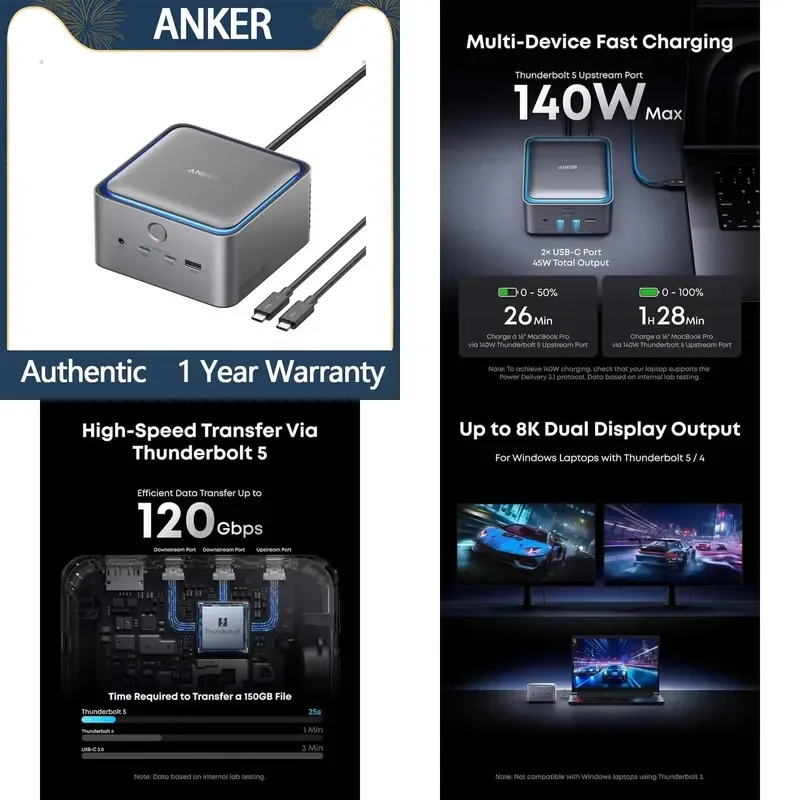
A Thunderbolt 5 dock is the most capable and the most future-proof, but only on a laptop that can use it. A USB-C multiport adapter is the honest choice for a laptop with no Thunderbolt port. The Anker Prime TB5 Docking Station (14-in-1) is a Thunderbolt 5 example with 14 ports, a Thunderbolt 5 upstream port carrying 140W of host charging, two Thunderbolt 5 downstream ports and 2.5 Gbps Ethernet, which suits a desk that wants power, two display paths and a wired network in one box.
Power budget: host charging and total watts
A dock has two power numbers. Total power is everything the dock can supply to itself and to the laptop at once; host charging is the share that goes to the laptop. A dock with 240W of total power and 140W of host charging has room for the laptop plus hungry peripherals.
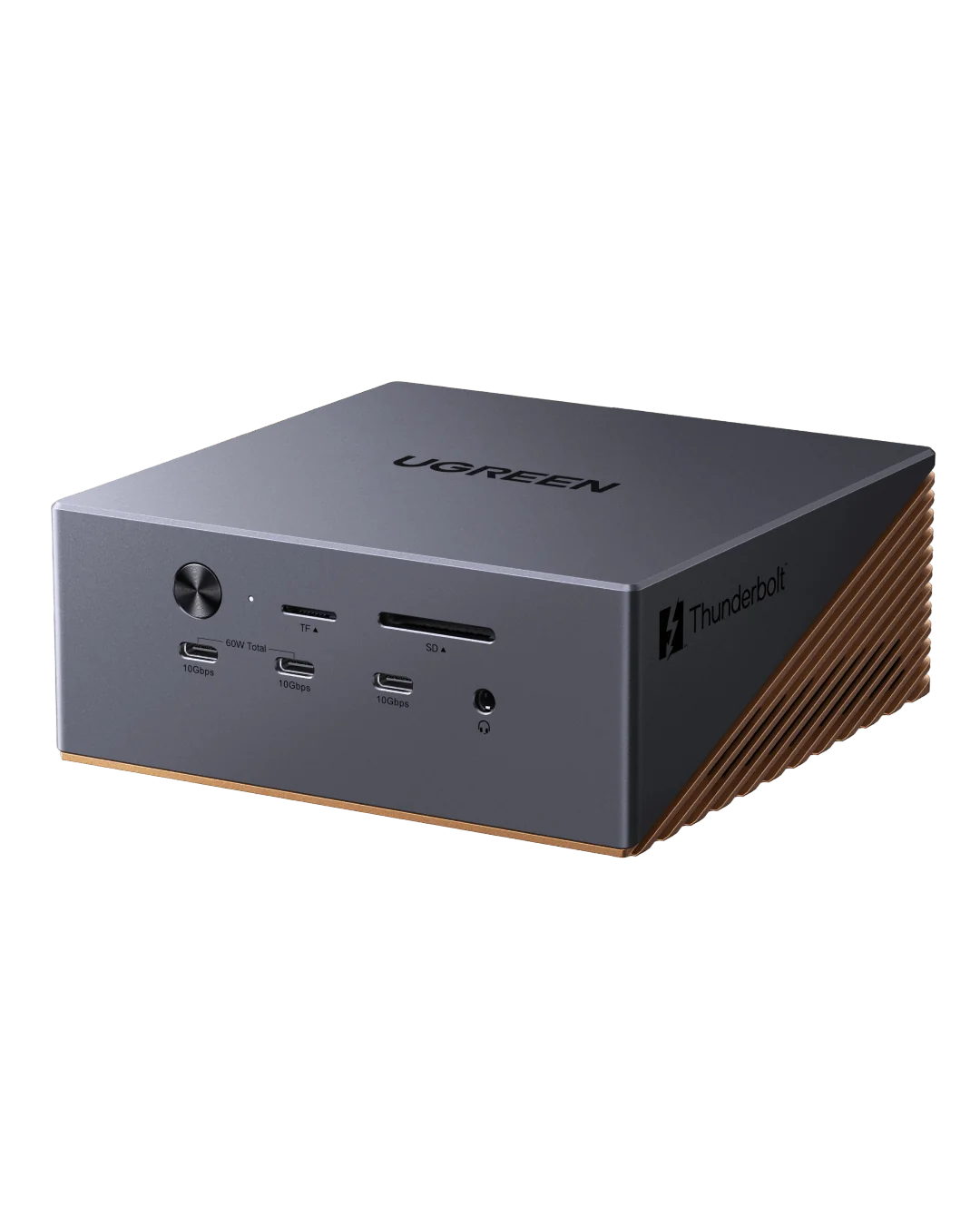
The UGREEN Revodok Maxidok 17-in-1 is the high-end example here: 17 ports, Thunderbolt 5 at 120 Gbps, a built-in M.2 NVMe slot for SSDs up to 8TB, and 240W of total power with 140W of host charging. It is aimed at people who want many ports and a large internal drive without a separate enclosure.
Features worth paying for vs marketing noise
Worth paying for: the right connection standard, host charging that matches your charger, an Ethernet port if your Wi-Fi is unreliable, a built-in SSD enclosure if you want one cable for storage, and enough video outputs for the monitors you actually own.
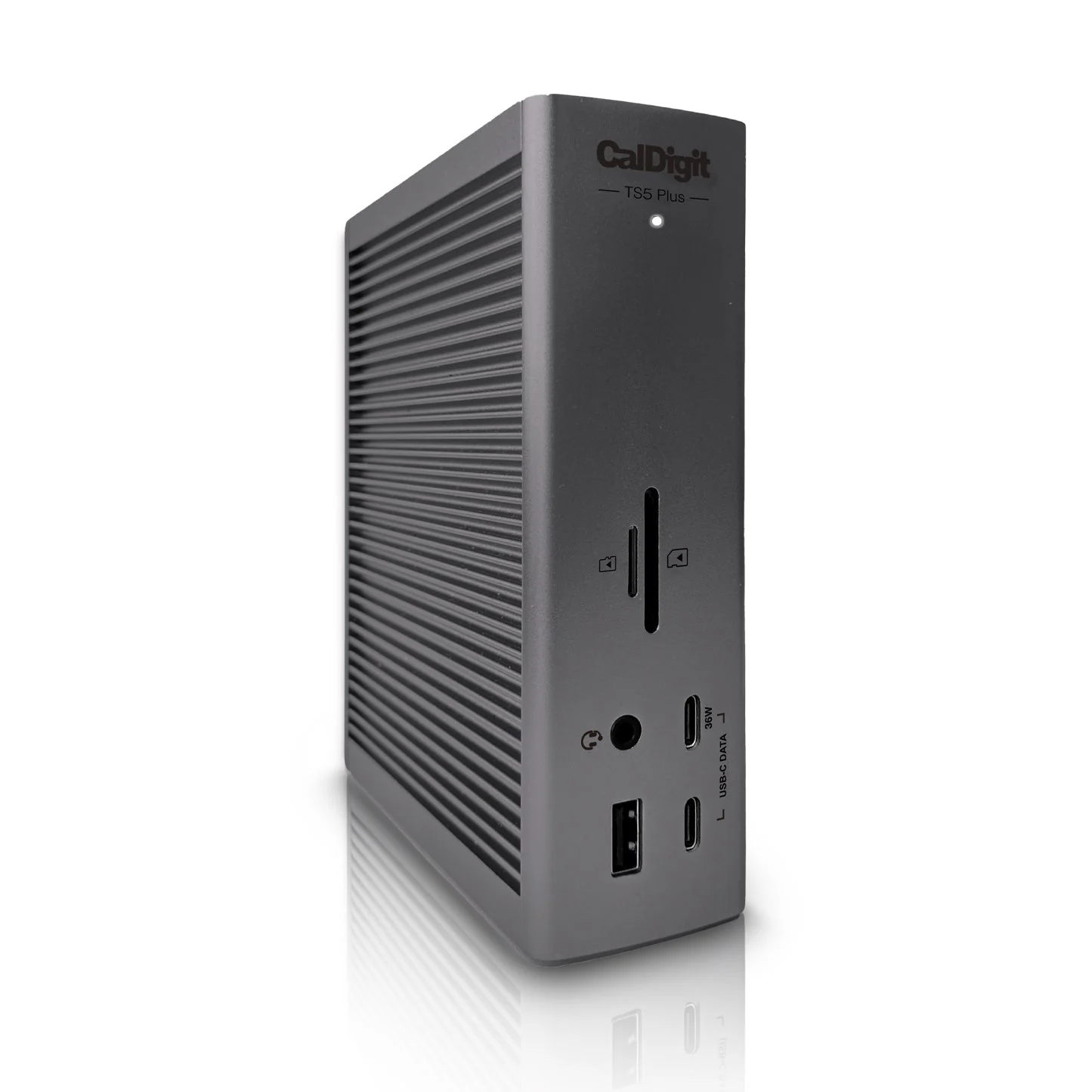
Marketing noise: raw port count. A 17-port dock sounds better than a 10-port one until you realize you use four ports daily. Bandwidth numbers also get exaggerated in isolation; Thunderbolt 5 at 120 Gb/s is real headroom, but you only feel it when you are moving large files to fast storage or driving demanding displays. The CalDigit TS5 Plus shows the port-count trap in reverse: 20 ports, 120 Gb/s of Thunderbolt 5 bandwidth, 10 Gigabit Ethernet and 140W of host charging suit a buyer who needs a long port list and a fast wired network.
Rule of thumb: port count is easy to print and hard to use. Count the devices you plug in on a normal Tuesday and buy for that list.
Sizes and desk fit
A dock lives on the desk, so its footprint matters as much as its ports. A compact cube can sit beside a monitor arm; a long bar can disappear behind a laptop stand. Check the dimensions against the space where it will sit, and check the upstream cable length, which decides how close the dock must sit.
Common mistakes
Buying a Thunderbolt 5 dock for a USB-C laptop. The dock works, but you pay for bandwidth the laptop cannot use.
Ignoring host charging. A dock that cannot keep your laptop charged turns into a daily annoyance.
Buying by port count. Extra ports you never plug into add cost and bulk, not convenience.
Forgetting the display. Two monitors need a dock that lists dual-display support for your standard.
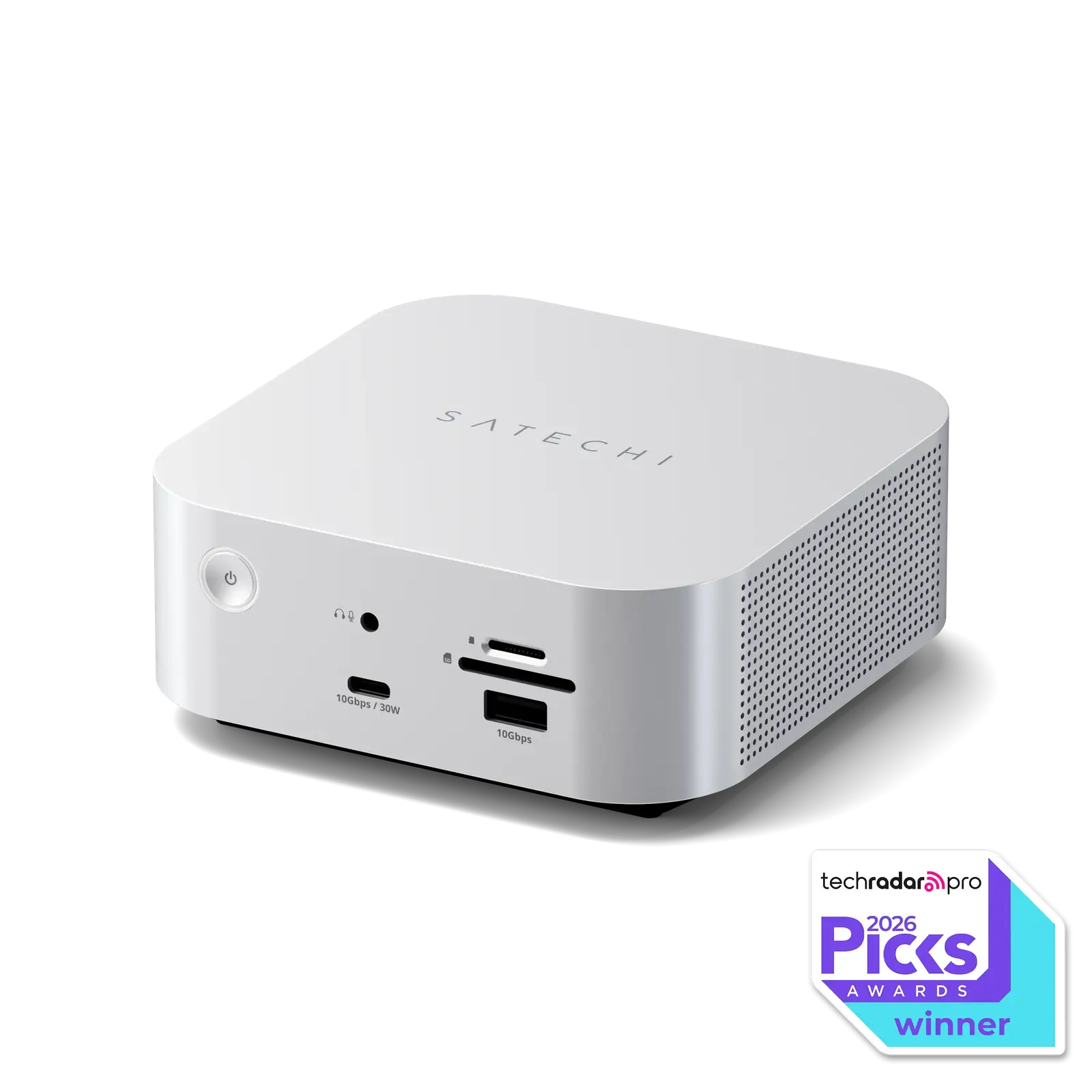
Assuming the SSD comes with the enclosure. A built-in M.2 slot is a slot, not a drive. The Satechi Thunderbolt 5 CubeDock with SSD Enclosure has one upstream and three downstream Thunderbolt 5 ports, a built-in M.2 NVMe SSD enclosure with the SSD sold separately, up to 140W of host charging and 2.5G Ethernet, so the buyer should plan for a drive purchase on top.
Rule of thumb: buy for the ports and charging you use daily, not for the ones that look good in a spec sheet.
Who should buy what
Students and light users: a small USB-C multiport adapter with a few USB-A ports, an HDMI output and maybe an SD reader. Skip Thunderbolt unless the laptop already supports it.
Office workers with one monitor: a mid-size Thunderbolt 4 or USB-C dock with host charging, one video output, Ethernet and a couple of USB-A ports. Creators and multi-monitor desks: a Thunderbolt 5 dock with multiple downstream ports, enough host charging for a powerful laptop, and the display outputs for two screens. The CalDigit TS5 Plus with 10 Gigabit Ethernet fits people who move large files on a wired network.
People who want one cable for storage too: a dock with a built-in SSD enclosure, such as the Satechi Thunderbolt 5 CubeDock with SSD Enclosure, keeps a fast drive inside the dock. Remember the drive is separate.
Maxed-out desks with many devices: the UGREEN Revodok Maxidok 17-in-1 covers 17 ports, a large M.2 slot and 240W total power for setups that genuinely need the capacity.
Setup and daily use tips
- Plug the dock into the laptop’s fastest port, and connect the power brick before anything else so host charging is available from the start.
- Attach the monitor before the peripherals, and confirm the display is recognized at the resolution and refresh rate you expect.
- Test the network: if you use Ethernet, check the link speed in the operating system rather than trusting the cable.
- If the dock has a built-in SSD enclosure, install the drive first, format it, and keep a backup, because an internal slot is less easy to swap than an external drive.
- Update the dock’s firmware when the manufacturer releases it; docks get fixes for display and charging behavior.
- UGREEN Revodok Maxidok 17-in-1 – suits power users with many peripherals who want 17 ports, Thunderbolt 5 at 120 Gbps, an M.2 NVMe slot for SSDs up to 8TB and 240W of total power with 140W of host charging.
- CalDigit TS5 Plus – suits creators and office desks that need 20 ports, 120 Gb/s of Thunderbolt 5 bandwidth, 10 Gigabit Ethernet and 140W of host charging on a wired network.
- Satechi Thunderbolt 5 CubeDock with SSD Enclosure – suits buyers who want one upstream and three downstream Thunderbolt 5 ports plus a built-in M.2 NVMe SSD enclosure, with the SSD sold separately, 140W of host charging and 2.5G Ethernet.
- Anker Prime TB5 Docking Station (14-in-1) – suits a clean desk that needs 14 ports, a Thunderbolt 5 upstream port with 140W of charging, two Thunderbolt 5 downstream ports and 2.5 Gbps Ethernet.