How to Choose a Computer Mouse in 2026
Published October 20, 2026
In this article
The right computer mouse fits your hand and daily tasks before it impresses you with sensor numbers. An ultra-light competitive mouse and a feature-rich office mouse solve different problems; neither is automatically comfortable for everyone. Choose by grip, button and wheel layout, connectivity and actual usage, then compare DPI and polling specifications [1][2].
Is a computer mouse worth it in 2026?
Yes when a touchpad makes work or games harder. A well-fitted mouse gives precise pointing, dedicated scrolling and reachable shortcuts for spreadsheets, design, video editing or games. A travel mouse can serve several computers without a complicated setup, while a specialized gaming shape can help reach actions without moving fingers away from the controls [2][3].
Skip a premium mouse if a basic model already fits. A costly sensor rarely improves routine browsing when you never use its maximum sensitivity.
What actually matters
1. Hand size, grip and reach
Shape is the first filter. Palm grip supports more of your hand, while claw and fingertip styles permit different finger movements. Measure hand length from the wrist crease to the middle-finger tip: RTINGS uses approximate bands of 14–17.5 cm small, 17–19.5 cm medium and 19–20.5 cm large, with overlap by design [3]. These groups are useful for comparisons, not exact fit rules.
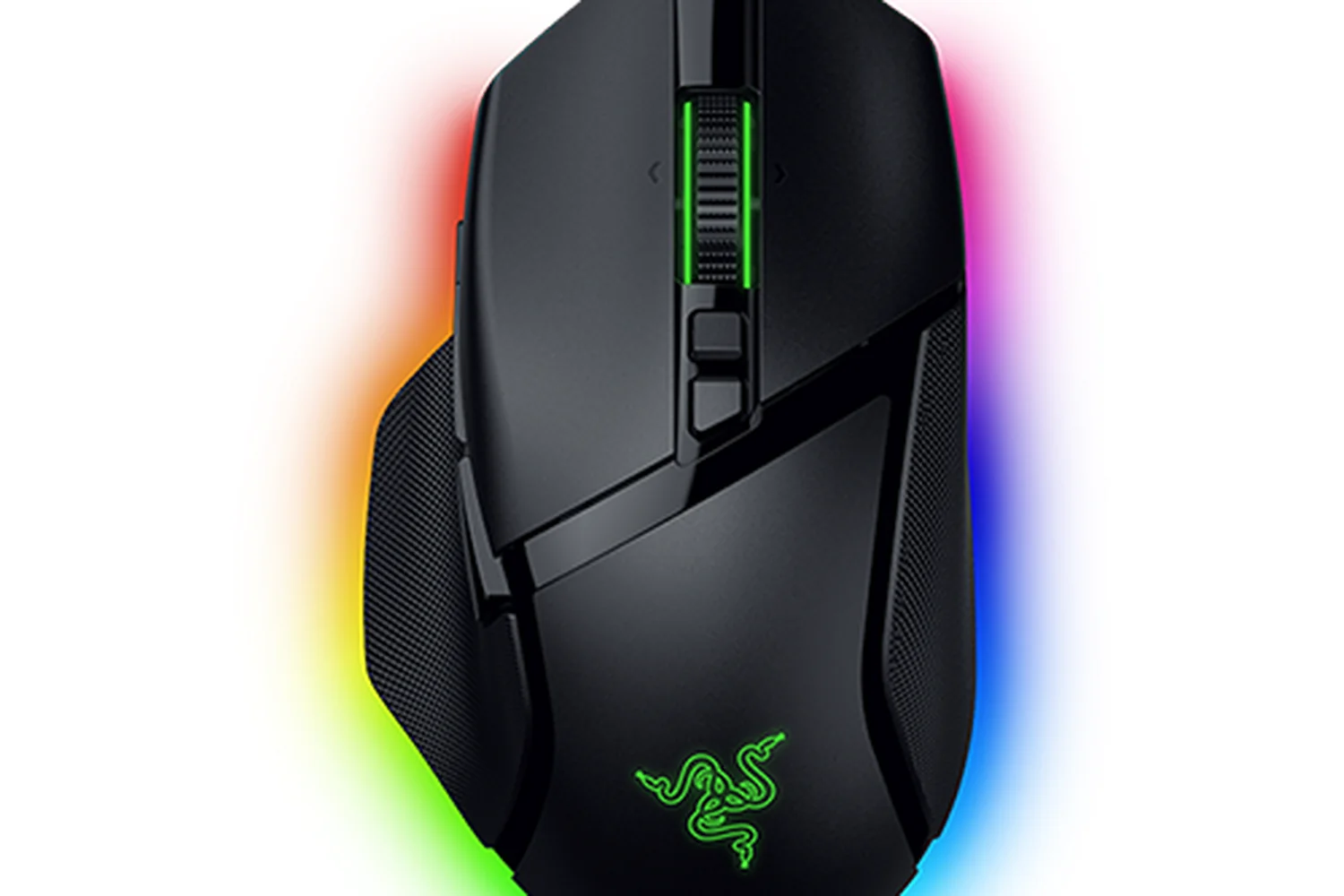
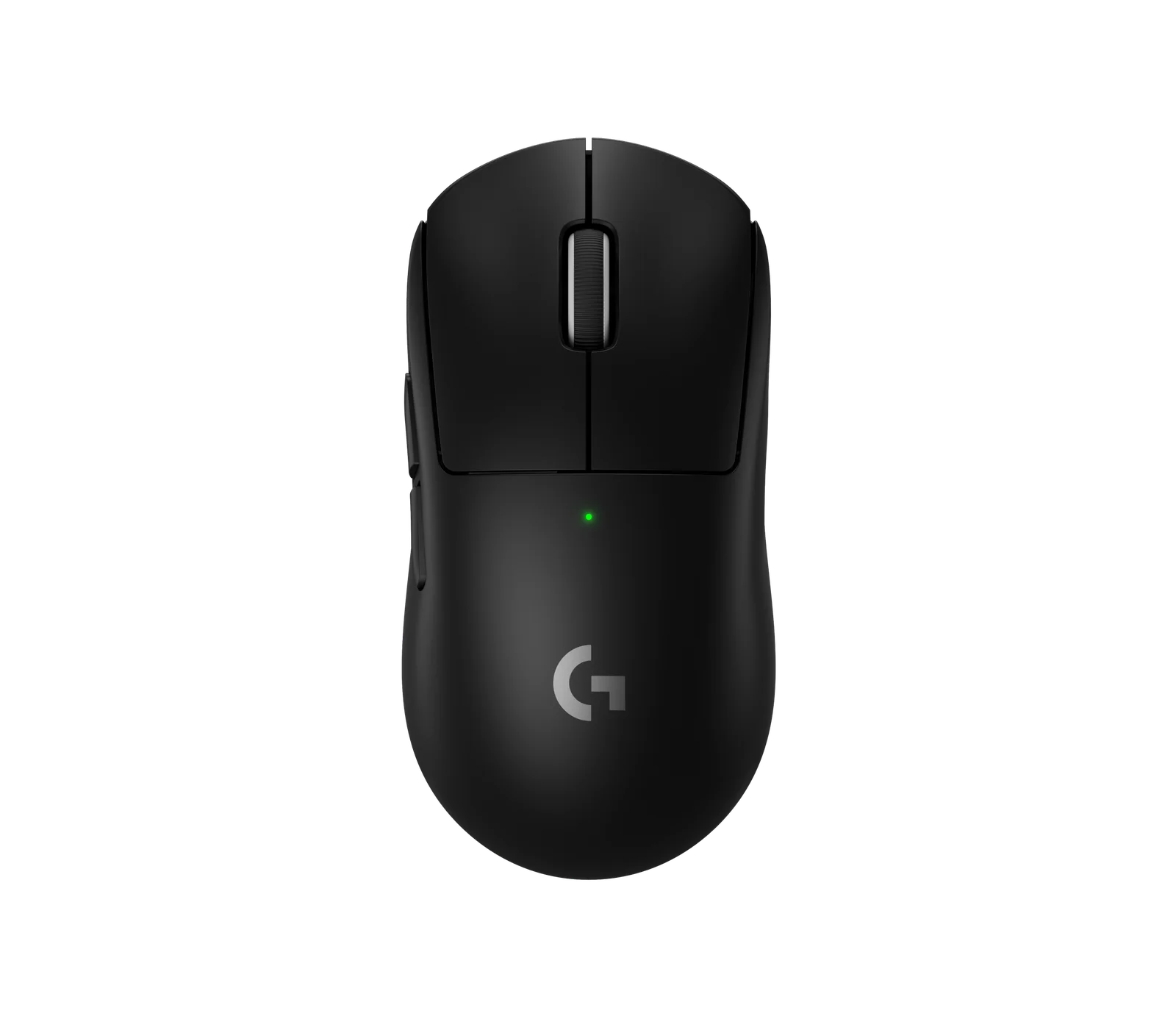
Also note mouse width, rear hump, side-button position and whether your thumb naturally reaches the wheel or trigger. A right-handed sculpted body should not be treated as ambidextrous. The Razer Basilisk V3 Pro 35K has a right-handed ergonomic shape. The Logitech G PRO X SUPERLIGHT 2 is symmetrical, which may suit different grips, although button placement can still favor one side.
OSHA advises keeping the pointer close to the keyboard, with the wrist near neutral and the elbow comfortably positioned [1]. If a mouse requires stretching to reach buttons, moving it or changing shape may help more than increasing sensitivity. Test it with the same grip and typical session length you use at home.
Rule of thumb: Prioritize comfortable grip and reachable buttons before comparing DPI, lighting or maximum polling rate.
2. Productivity ergonomics versus competitive weight
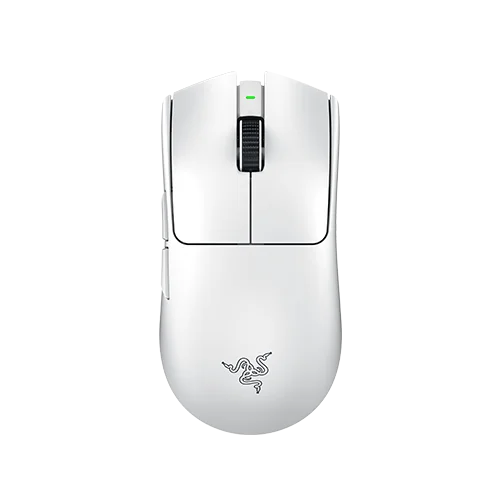
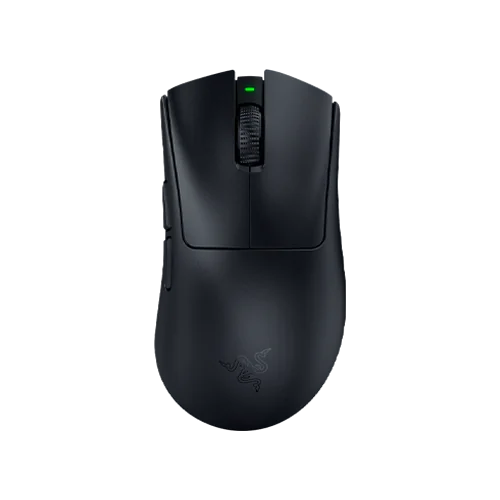
A heavier, contoured mouse may feel controlled in careful document work; a light mouse can make rapid repeated movements easier during games. Weight alone cannot establish comfort. Our Razer Viper V3 Pro lists 54 g for the black model, the Razer DeathAdder V4 Pro 56 g, and the Logitech G PRO X SUPERLIGHT 2 60 g [4]. They emphasize quick control rather than extensive scrolling controls.
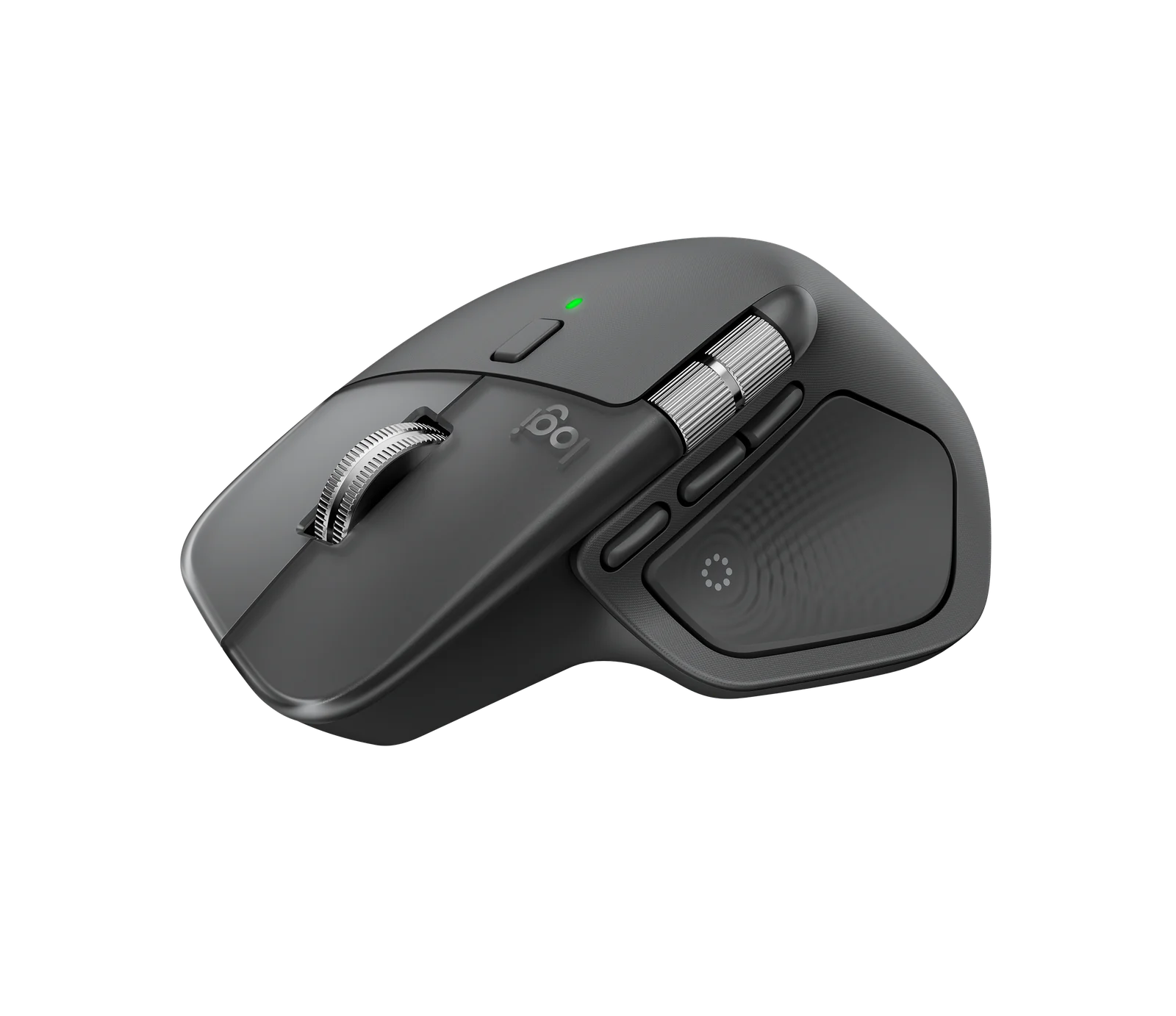
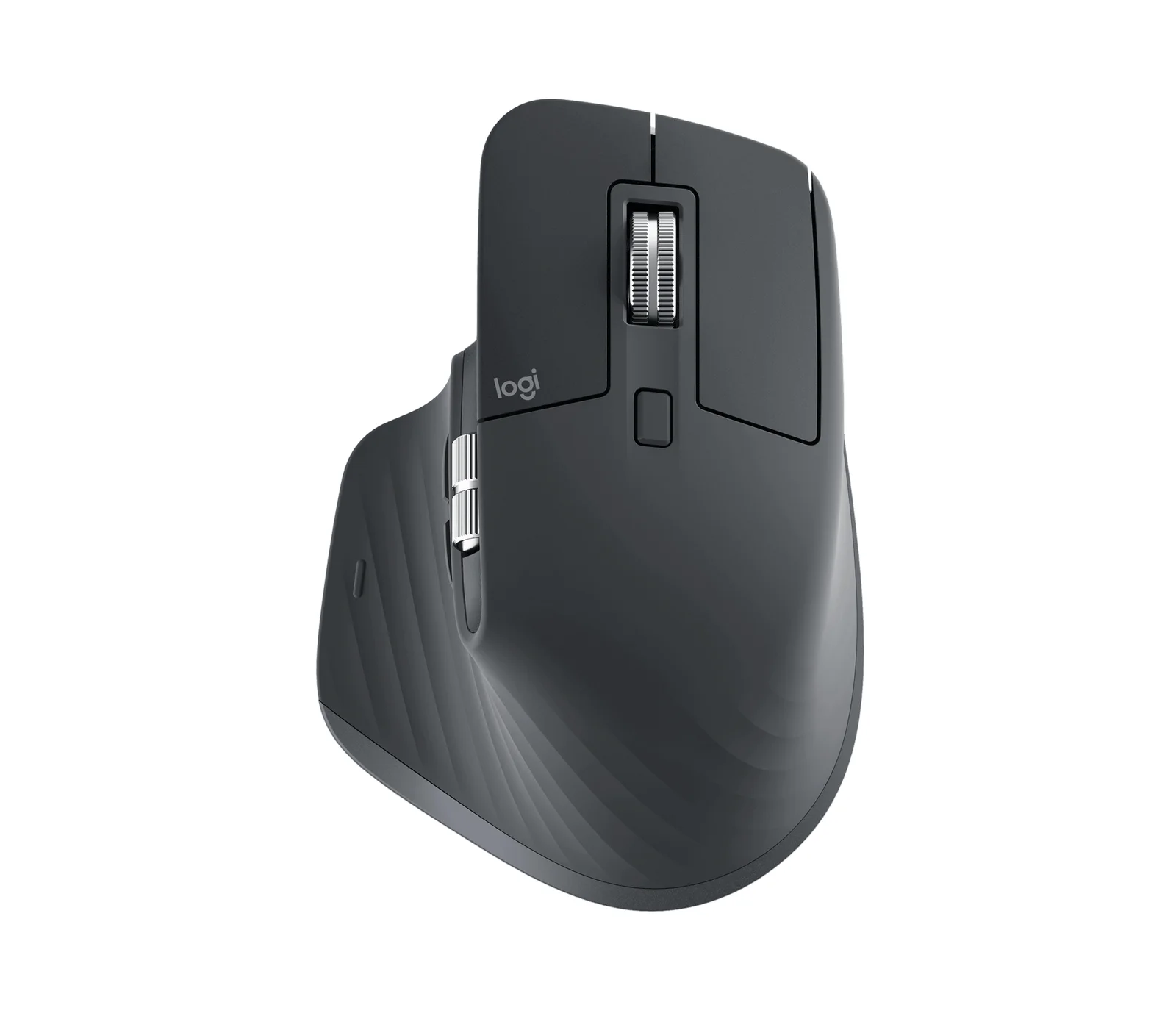
The Logitech MX Master 4 instead emphasizes a MagSpeed scroll wheel, thumb controls and a haptic panel, while the MX Master 3S Bluetooth Edition retains the familiar sculpted productivity layout. For document-heavy work, the ability to navigate long pages and spreadsheets without switching tools can matter more than shaving several grams [5].
**### 3. Sensor, DPI and practical cursor speed
DPI describes how far the pointer responds to physical movement, not a universal accuracy score. Very high values such as 35,000 DPI are available on the Razer Basilisk V3 Pro 35K, but most people will use only a fraction of a sensor’s maximum [6]. For many desktop tasks, a usable starting range is roughly 800–1,600 DPI, then adjust Windows or macOS pointer speed to taste. This is a setup suggestion, not an ideal figure for every display.
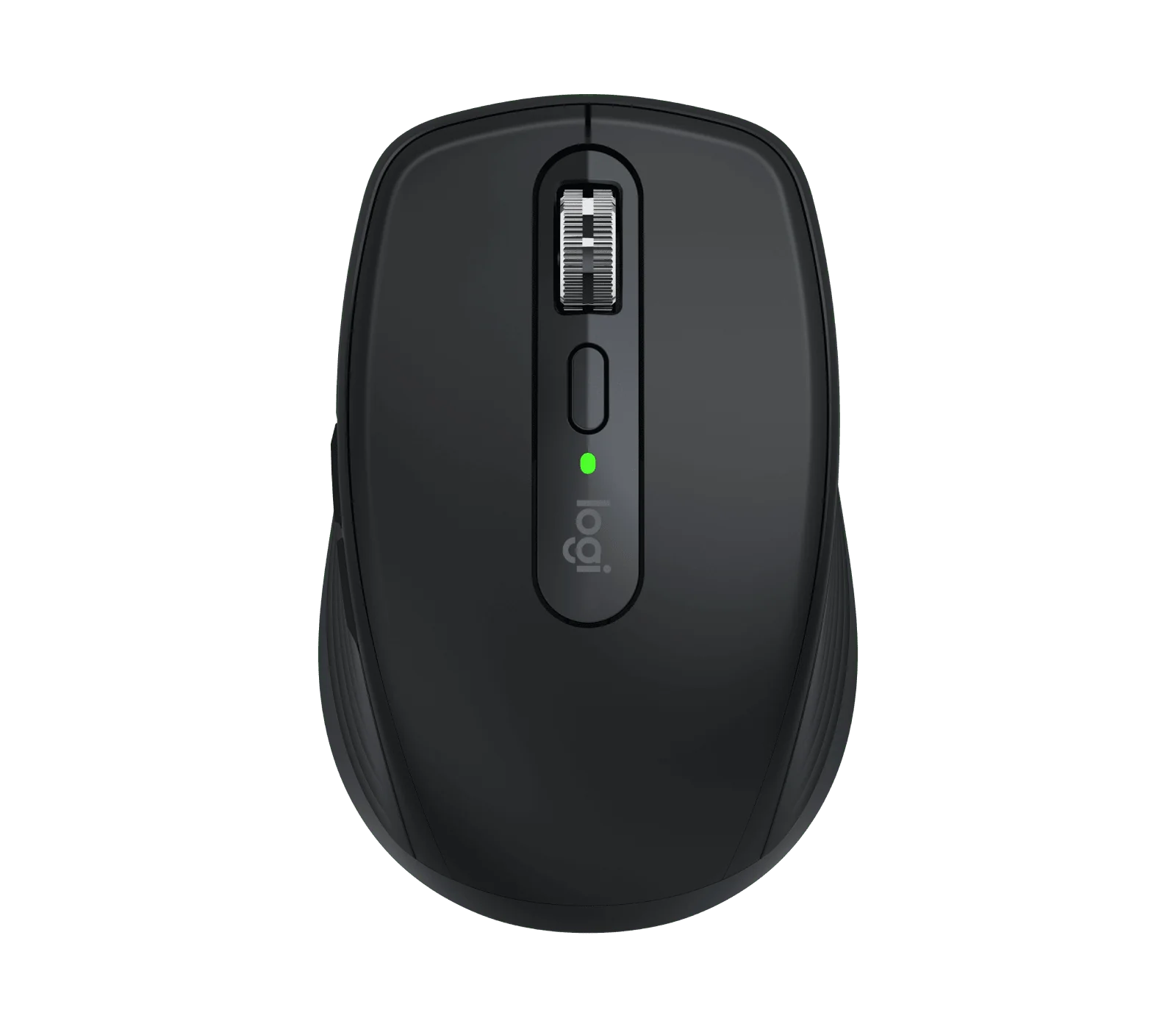
Large monitors and limited mousepad space may benefit from higher comfortable sensitivity. The Logitech MX Master 4 offers up to 8,000 DPI and tracks on suitable glass surfaces, while the MX Anywhere 3S also uses an 8,000 DPI any-surface sensor [5][7]. Glass tracking is useful for mobile desks, but still confirm the thickness and surface limitations in the manufacturer’s documentation.
Avoid confusing DPI with polling rate. DPI affects pointer distance per unit movement; polling rate affects how frequently position updates reach the computer. Set sensitivity so your hand remains comfortable and you can still place the pointer accurately on small targets [1].
4. Polling rate, connection and latency
A mouse reporting at 125 Hz nominally supplies an update every 8 ms; at 1,000 Hz, every 1 ms; at 8,000 Hz, every 0.125 ms. Those are report intervals, not promised end-to-end click latency or a guaranteed improvement in every game [8]. Frame rate, display refresh, firmware and software also influence the outcome.
The Razer DeathAdder V4 Pro lists true 8,000 Hz polling in wired and wireless modes. The Logitech G PRO X SUPERLIGHT 2 is another competitive wireless design [4]. A very high report rate can increase processing work and power consumption; test stability before using the largest setting by default.
For routine office work, Bluetooth can be convenient. For latency-sensitive gaming, a dedicated 2.4 GHz receiver or wired connection is usually a better starting point. The Razer Basilisk V3 Pro 35K supports Bluetooth, HyperSpeed wireless and USB cable operation, which is valuable if you switch between gaming and work [6]. Check receiver inclusion: some productivity models support a proprietary dongle but do not include one.
5. Wheel, side buttons and software
A wheel can make a greater everyday difference than a better sensor. The Logitech MX Master 4 provides MagSpeed scrolling and programmable Actions Ring controls with a haptic panel [5]. The Logitech MX Anywhere 3S offers ratcheted and fast scrolling in a smaller body [7]. If you read long research pages or edit spreadsheets, test how quickly you can move between coarse and precise scroll steps.
The Razer Basilisk V3 Pro 35K has a HyperScroll tilt wheel and multiple customizable controls [6]. Those may be useful for gaming commands or media editing. By comparison, the Razer Viper V3 Pro emphasizes a lean symmetrical gaming body rather than an elaborate productivity wheel.
6. Battery, receiver and spare parts
Rechargeable office mice can last weeks on light settings, but battery life is workload-dependent. Logitech specifies up to 70 days per charge for the MX Anywhere 3S, with about three hours of use from a one-minute charge under its test conditions [7]. The MX Ergo S uses USB-C charging. Wireless gaming runtime may shorten with bright RGB, high polling or frequent use.
Plan where a receiver plugs in, especially if the PC is underneath a desk or behind metal furniture. Check whether the mouse uses Bluetooth, a proprietary receiver or both, and whether its USB-C port supports operation during charging.
Wear parts matter: PTFE skates can become scratched or uneven; rubberized grips, wheel mechanisms and charging connectors may deteriorate. A replaceable set of feet and compatible grip tape are practical accessories for a mouse you expect to keep. Check manufacturer warranty and parts availability rather than assuming every accessory fits every generation.
Our reference: the Logitech G502 family
On our desk, the Logitech G502 family is the reference point for an all-purpose gaming mouse. We consider its wired and wireless versions rather than treating the model name as one configuration. Logitech’s own comparison shows that G502 HERO, LIGHTSPEED and G502 X models differ in mass, switch construction and connection method: the wired G502 X is about 89 g, versus 102 g for G502 X LIGHTSPEED [9]. We favor a practical button layout and scroll wheel over a meaningless maximum DPI headline.
For accessories, our checklist includes a charging pad, replacement skates/feet and grip tape. The Logitech POWERPLAY mousepad supports selected wireless G502 models including G502 LIGHTSPEED and G502 X PLUS, with a compatible POWERCORE module [10]. It is not a universal charging surface for all wired and wireless G502 variants. Replacement feet and grip tape should be matched to the specific generation and checked for sensor-clearance or fit issues.
For a similar right-handed, multi-button layout, consider the Razer Basilisk V3 Pro 35K in our catalog. We also consider A4Tech Bloody gaming mice and ASUS ROG mice as alternatives, but compare their individual shape, software and wheel controls rather than assuming they are exact G502 copies. The official Bloody software and ASUS ROG Keris specifications illustrate the different approaches [11][12].
Types compared
| Type | Best when | Main drawback |
|---|---|---|
| Sculpted productivity mouse | Long documents, editing and spreadsheets | Heavier, usually lower polling |
| Symmetrical ultralight gaming mouse | Competitive aiming and fast motion | Few secondary productivity controls |
| Right-handed feature-rich gaming mouse | Games plus shortcuts and wheel modes | Bulkier and busier shape |
| Compact travel mouse | Small desks, laptops and multiple devices | Less hand support for some users |
| Wireless trackball | Tiny workspace and less arm travel | Learning curve and ball cleaning |
| Wired mouse | Reliable connection without charging | Cable drag and less freedom |
Computer mice for beginners, small desks, families and heavy use
Beginners and students: Choose a comfortable size, ordinary buttons and easy connectivity rather than extreme polling. The Logitech MX Anywhere 3S fits travel and multi-device work where its compact body feels comfortable.
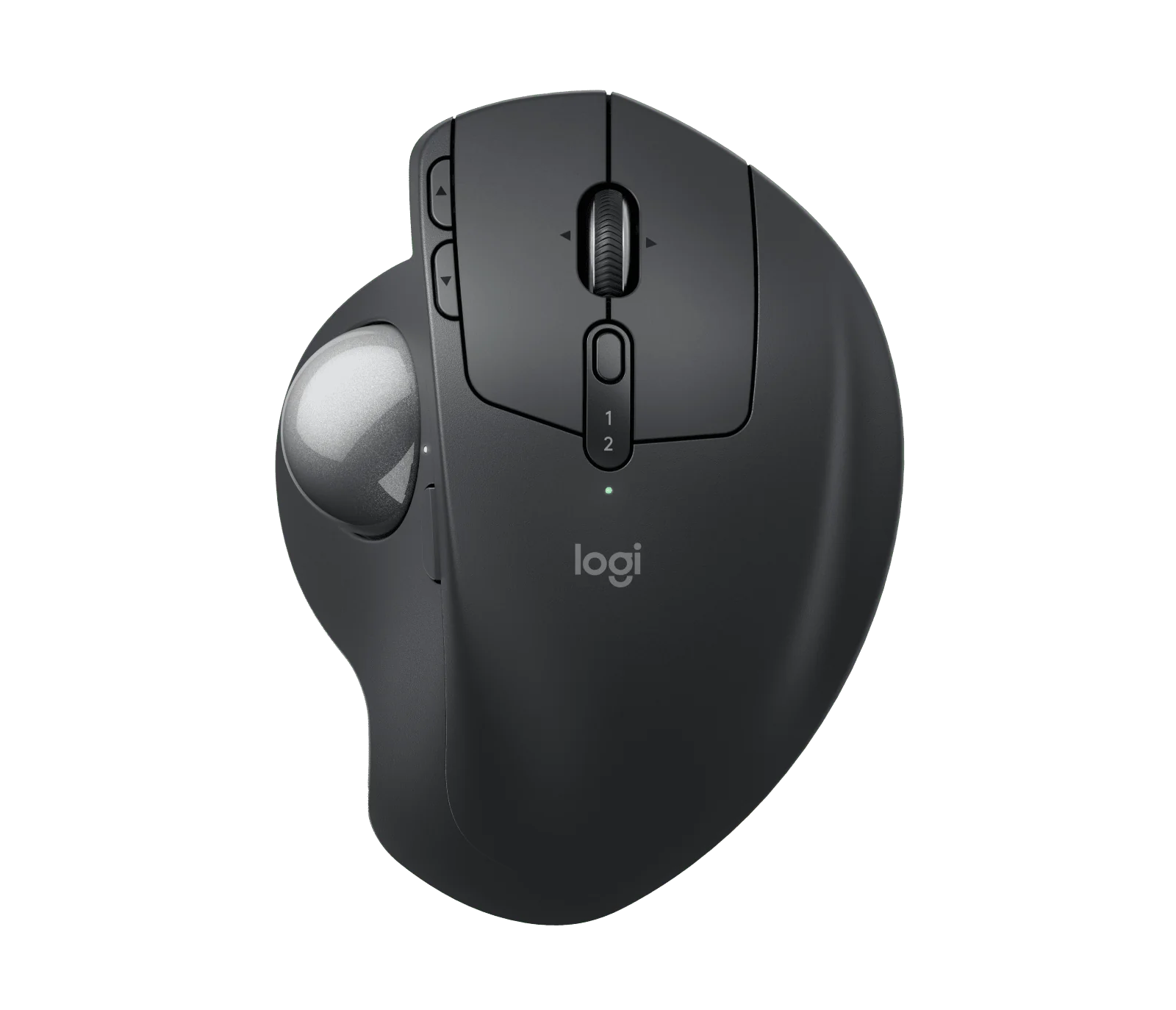
Small desks: The Logitech MX Ergo S is a trackball with a 20-degree tilt and six customizable buttons. The mouse body stays in one place while the thumb moves the ball, which saves lateral mousepad space [13]. Try the thumb action before buying because it suits some users better than others.
Family computers: A quiet click and uncomplicated pairing may matter more than gaming sensor maximums. The Logitech MX Master 3S Bluetooth Edition offers quiet switches and fast scrolling; verify hand fit if users have different palm sizes.
Competitive gaming: Compare the Razer Viper V3 Pro, Razer DeathAdder V4 Pro and Logitech G PRO X SUPERLIGHT 2 by actual grip, motion and click behavior, not just by their 54–60 g weight range.
Long office days and heavy productivity: The Logitech MX Master 4 provides a broad shortcut ecosystem, advanced scrolling and haptic customization. Use the haptic features only when they save actions in your actual software [5].
Features that are marketing noise
Extreme DPI, polling, RGB and numerous stored profiles do not fix an uncomfortable shape or improve ordinary browsing [2].
Do not confuse a vendor’s click-life rating with a guaranteed lifespan. Nor does an ergonomics percentage measured in a manufacturer study prove that one mouse will prevent discomfort for every hand. Test the controls and posture that matter to you [1][13].
Rule of thumb: Pay for a better fit, useful wheel controls or reliable wireless—not an extreme number you will leave disabled.
Setup tips
- Measure hand length and decide whether your grip is primarily palm, claw or fingertip [3].
- Position the mouse next to the keyboard, with the elbow close to the body and wrist straight [1].
- Pair Bluetooth or plug the intended receiver in, then confirm a stable connection at your working distance.
- Begin near 800–1,600 DPI for typical desktop use, adjusting until normal cursor travel requires little wrist strain.
- Test scrolling, side-button access and clicking for a real 15–20-minute session.
- For competitive games, increase polling in stages and check battery life and system responsiveness.
- Configure a small number of shortcuts in manufacturer software; save onboard profiles when supported.
- Keep the original receiver and document the mouse model so replacement skates and charging accessories match.
Maintenance and what wears out
Every few weeks: Wipe the shell and wheel using a cloth suitable for electronics, with the device turned off. Remove dust from the optical sensor gently and check the mousepad for grit. Do not soak seams, ports or switches.
Skates and grips: Inspect PTFE feet for uneven wear or exposed edges, particularly if the mouse begins scraping. Replace skates only when worn; use the correct model and remove old adhesive cleanly. Grip tape is optional and typically needs replacement when peeling or losing traction. Trackballs also need periodic cleaning of the exposed ball and support contacts, according to their manual [13].
Battery and yearly running costs: A wired mouse has no wireless battery to replace. Rechargeable wireless models have modest power requirements and may use no consumables in a given year. At a claimed 70 days per charge, an office mouse could need roughly five full-charge equivalents annually under similar use, but actual charging varies [7]. Budget for replacement skates, grip tape or receiver only if needed—not a fixed annual accessories package.
Long term: Switches may develop inconsistent actuation, scroll encoders may skip steps, rubber can wear and rechargeable cells lose capacity. A product advertised for millions of clicks is not guaranteed to last a specified number of years. Before replacing the mouse, check firmware, connection interference, USB charging and physical wear.
Computer mice versus alternatives: pros and cons
A standard mouse allows fast pointer travel and familiar shortcuts but needs working space and repetitive hand movement. A trackball stays stationary and may fit a cramped desk, but shifts control to the thumb or fingers. A laptop trackpad has excellent portability and gestures but may be less comfortable for extended precision tasks. Choose according to hand fit and actual work, not category prestige [1].
Common mistakes
Buying by DPI alone; ignoring grip style; choosing an ultralight FPS mouse for work that needs horizontal scrolling; confusing Bluetooth with a dedicated low-latency dongle; running maximal polling without testing power use; buying a wireless charging mat incompatible with the specific model; and assuming a right-handed sculpted mouse suits left-handed users [1][8][10].
- Logitech MX Master 4 — office work with advanced wheel controls, shortcuts and haptics.
- Logitech MX Anywhere 3S — compact multi-device travel and small desks.
- Logitech MX Ergo S — trackball where mouse movement space is limited.
- Razer Basilisk V3 Pro 35K — right-handed gaming with rich wheel and button controls.
- Razer DeathAdder V4 Pro — lightweight ergonomic competitive gaming.
- Logitech G PRO X SUPERLIGHT 2 — light symmetrical gaming with hybrid switches.
Sources
[1] OSHA — Pointer and Mouse Ergonomics [3] RTINGS — Hand Size and Grip Testing [4] Logitech G — PRO X SUPERLIGHT 2 Specifications [5] Logitech — MX Master 4 Features [6] Razer — Basilisk V3 Pro 35K Specifications [7] Logitech — MX Anywhere 3S Battery and Connectivity [8] Razer — Wireless Mouse Sensitivity and Polling [9] Logitech G — G502 HERO versus G502 X [10] Logitech G — POWERPLAY Wireless Charging Compatibility [11] Bloody — Official Mouse Driver and Software Support [12] ASUS ROG — Keris Right-Handed Mouse Design [13] Logitech — MX Ergo S Trackball and Controls